This tutorial walks you through, step by step and backed by real screenshots of the
English interface, building a first show: a fixture, an event, a bit of color, and a
full-scale test before the performance.
In dmx++, a show is a set of events, each made up of
elements — DMX, audio, or video — triggered at a given moment,
either manually or automatically.
The software adapts to any level of automation: a show that is
fully automatic and runs on its own once started, a
fully manual run where every event is triggered by an operator,
or a well-judged mix of both.
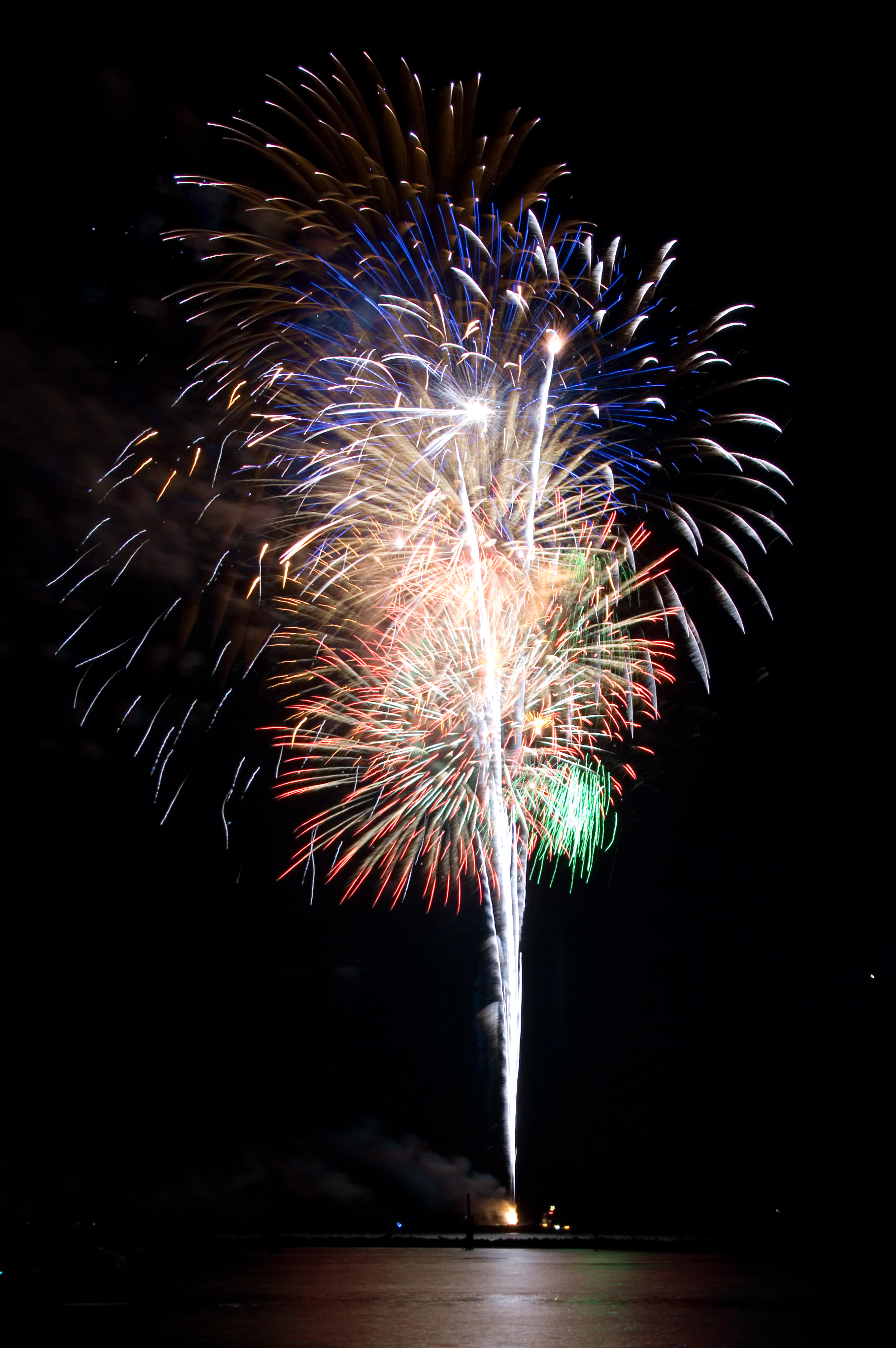
Example: a fireworks show can be fully automatic. Each event corresponds to
lighting one or more rockets at a precise moment; the elements are the DMX
outputs that trigger each ignition.
Photo: U.S. Navy (MC2 Douglas G. Morrison) — public domain, via Wikimedia Commons
Introduction
The home screen
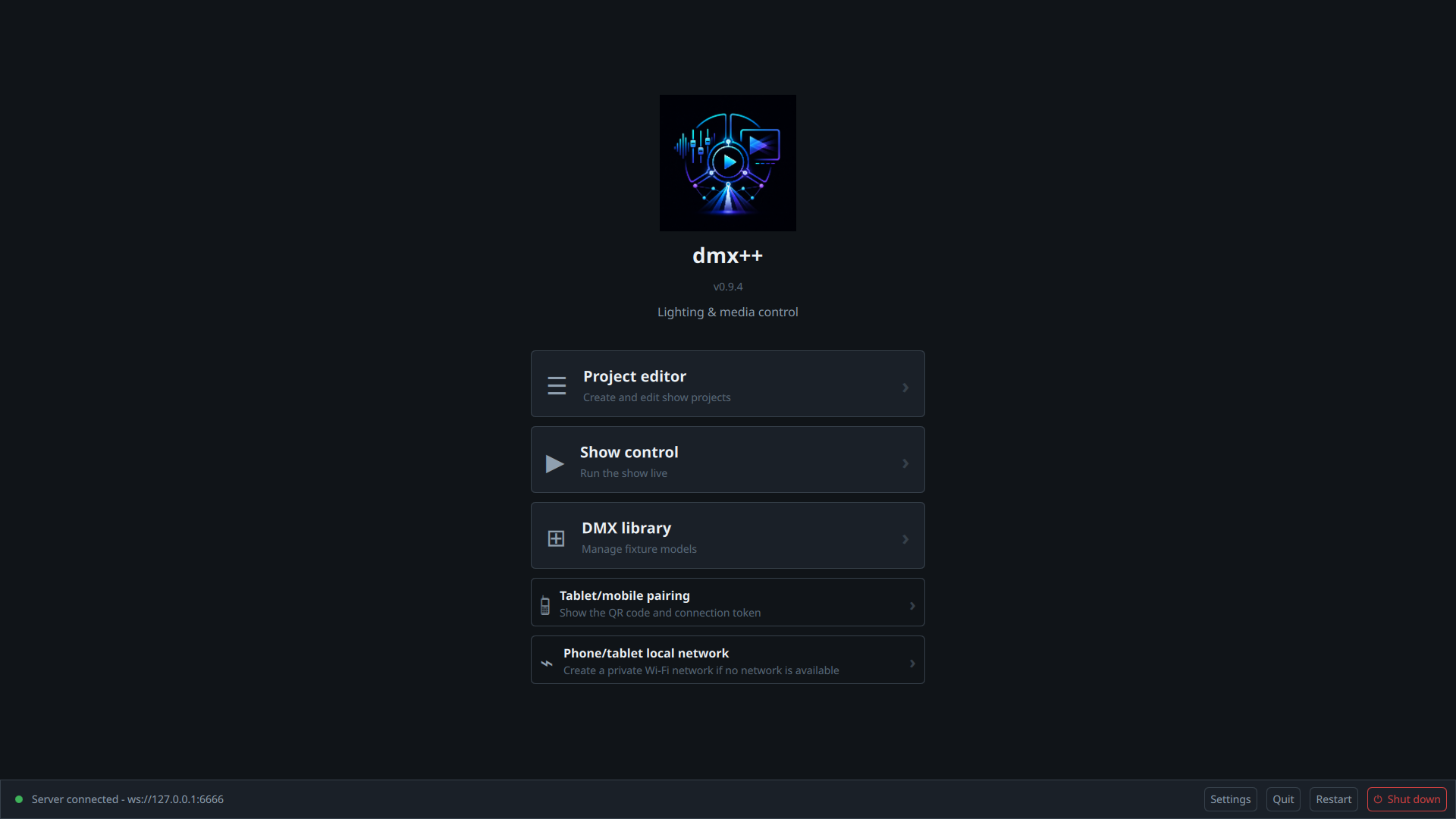
On startup, dmx++ shows a dashboard with the main actions available. In the
current version, five entries are on offer:
Project editor — create and edit show projects.
Show control — run the show live.
DMX library — manage fixture models and DMX hardware.
Tablet/mobile pairing — show the QR code and connection
token to pair the tablet or mobile app to this machine.
Phone/tablet local network — create a private Wi-Fi network
when none is available on site.
At the bottom of the screen, the Quit, Restart,
and Shut down buttons close the application, restart, or shut
down the computer, respectively — use with care once the show is over, not while
you're still programming!
Bottom left, the server indicator must read Server connected.
It's the engine of the application: it runs the database, the DMX output, and
communication with the mobile apps. Nothing works without it.
dmx++ — Home
The home screen, server connected, in English.
1.1
New show
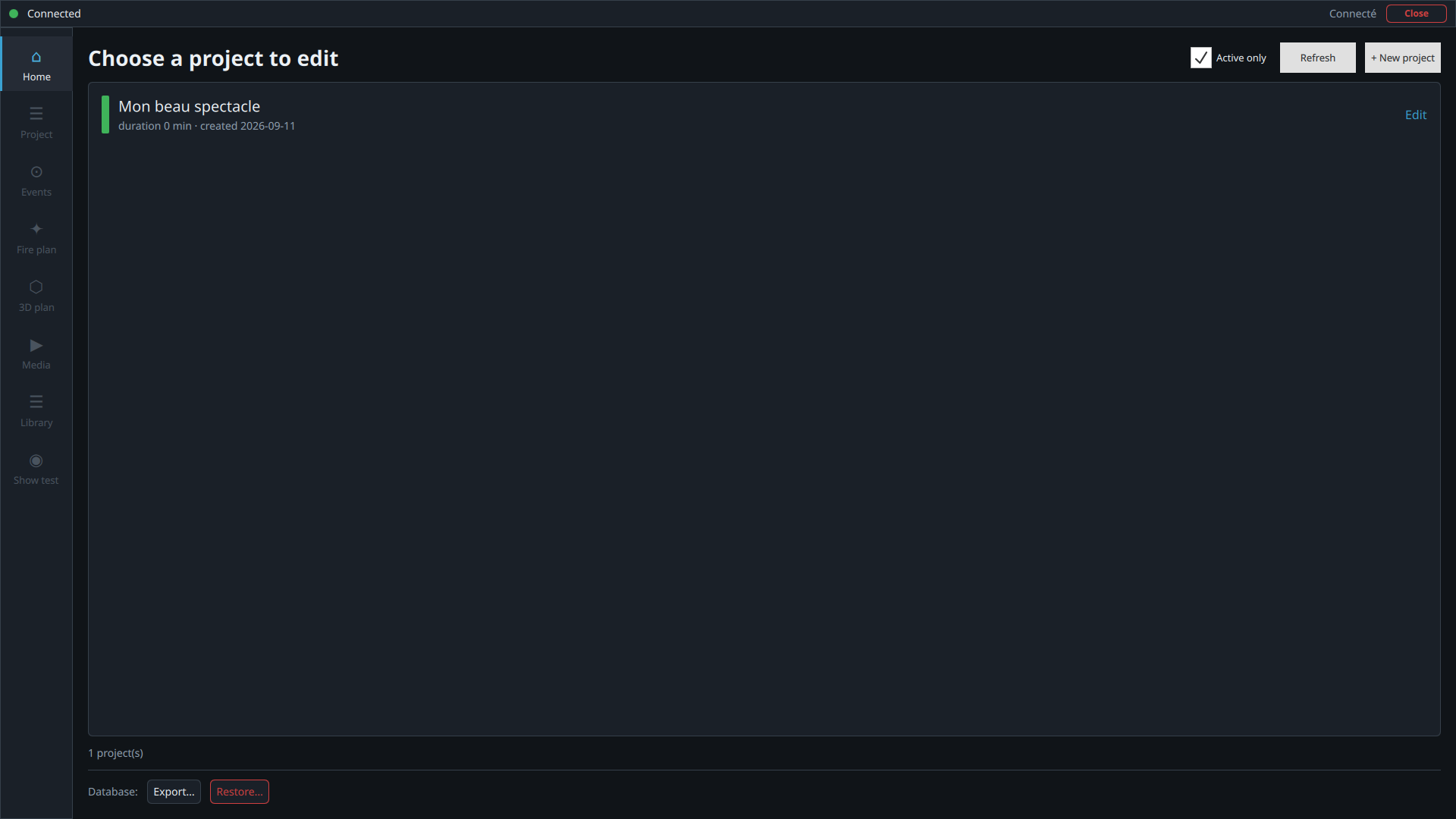
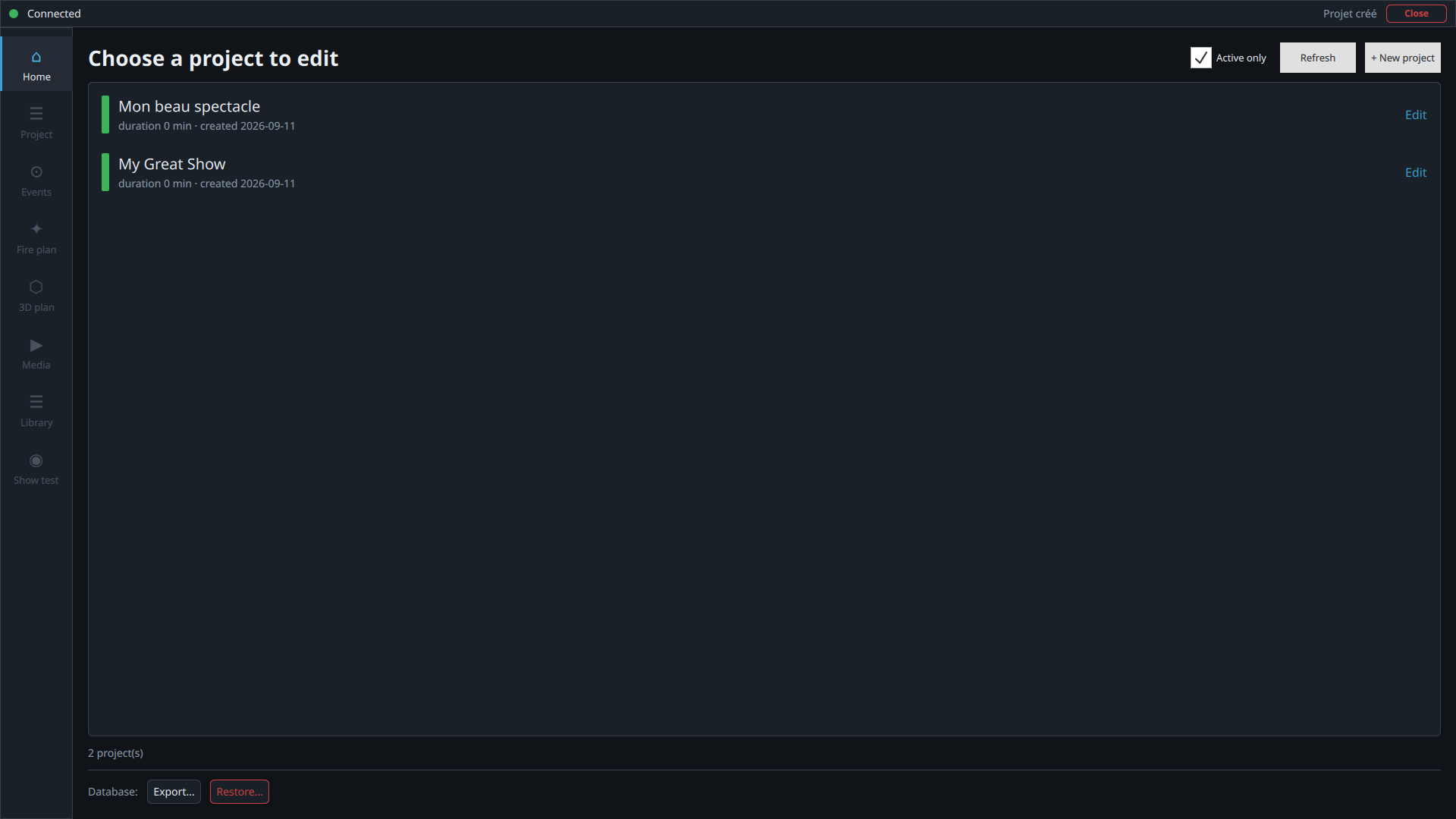
From the home screen, click Project editor. It opens on
Choose a project to edit — the Active only
checkbox shows or hides archived projects.
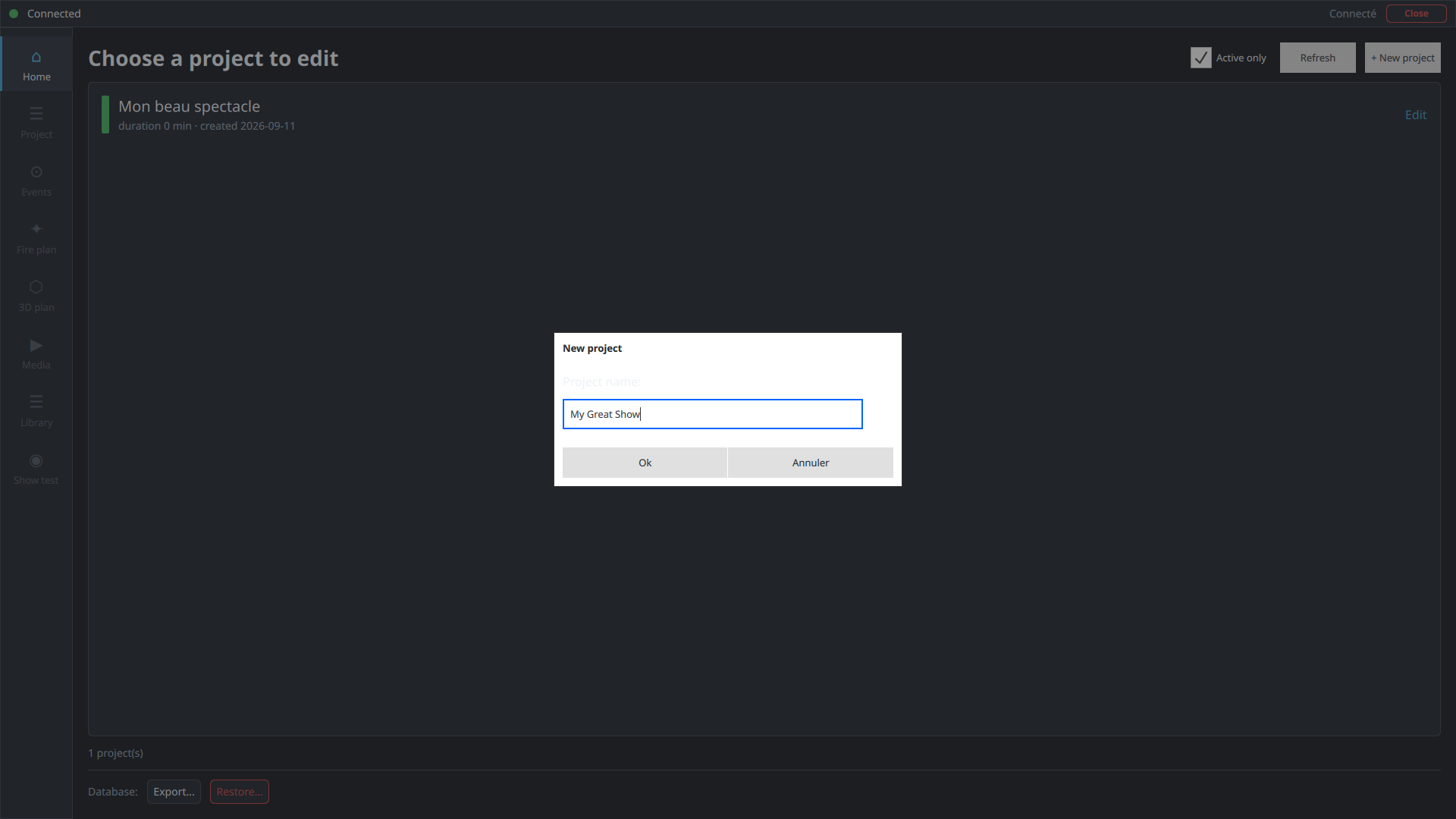
Click + New project at the top right, give it a name — for
example My Great Show — then confirm with Ok. The
project appears in the list right away.
dmx++ — Project editor
The project list — the left-hand rail (Home, Project, Events, Fire plan…) is also in English.
dmx++ — New project
The "New project" box, name entered, ready to confirm.
dmx++ — Project editor
The project has been created and appears in the list.
1.2
Edit a project
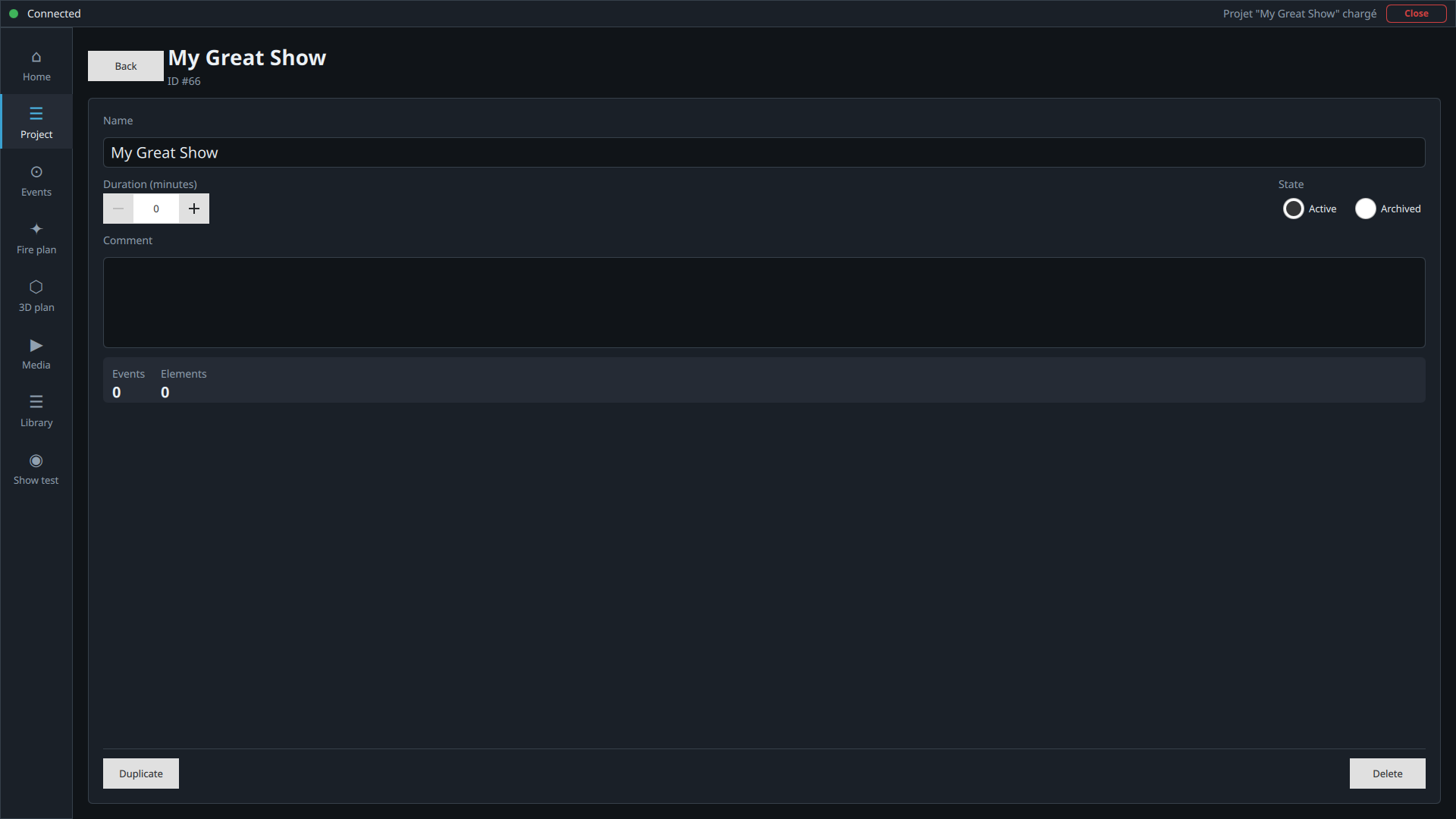
Click the row of the project you just created: the buttons in the left column
become available, and the page shown corresponds to the Project
button. It offers a simple set of settings:
Name — editable at any time.
Duration (minutes) — optional, useful for checking the
consistency of a fully automatic show, or when handing over to another
operator.
State — Active or Archived (an archived project disappears
from the list unless you choose otherwise).
Comment — optional, for noting anything important.
A summary of the project (Events / Elements
counts).
Changes are saved automatically as soon as you leave a field — that's true almost everywhere in dmx++.
Two buttons at the bottom of the page won't be used in this first tutorial:
Duplicate (start from an existing show without reprogramming
everything) and Delete (permanent removal of the project, after
confirmation).
dmx++ — Project
The "Project" page: name, duration, state, comment, and summary (0 events, 0 elements).
1.3
The Events button
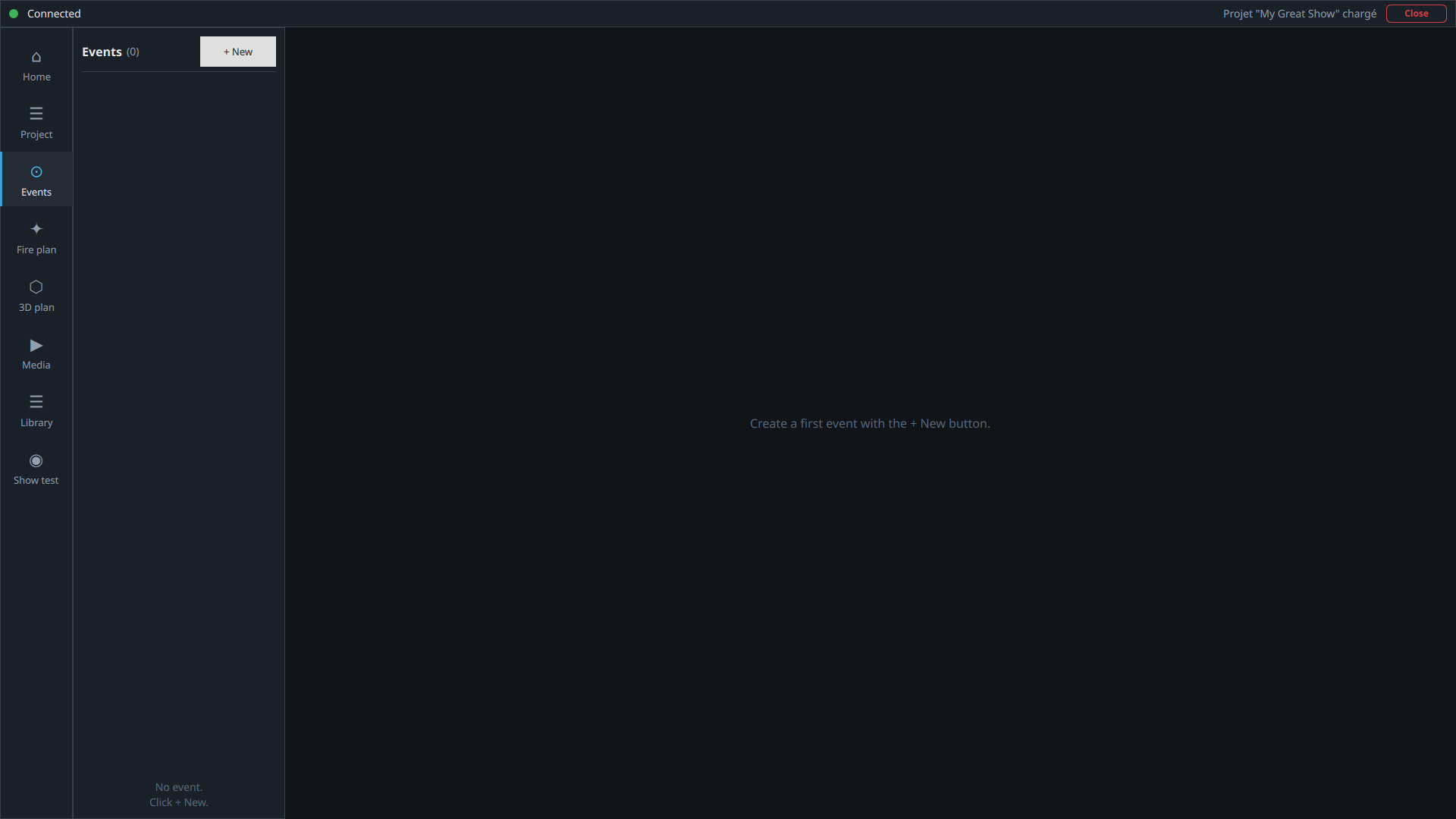
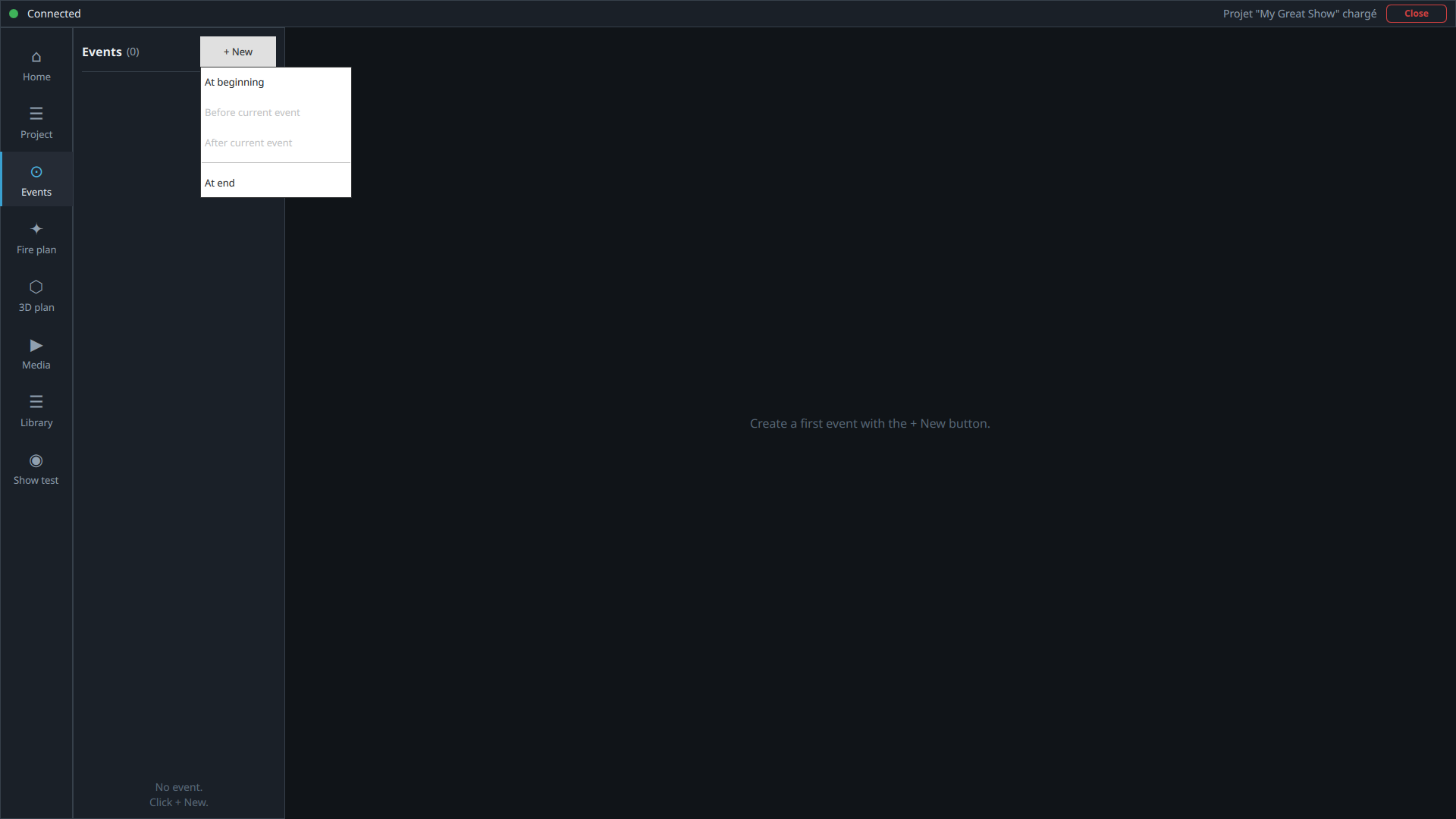
Just below Project, this is where all of the show's programming happens. Click
+ New: a small menu offers to insert the event At
beginning, before or after the currently selected event, or At
end.
dmx++ — Events
No events yet — "Create a first event with the + New button."
dmx++ — Events
Where to insert the new event — here "At beginning", since it's the first one.
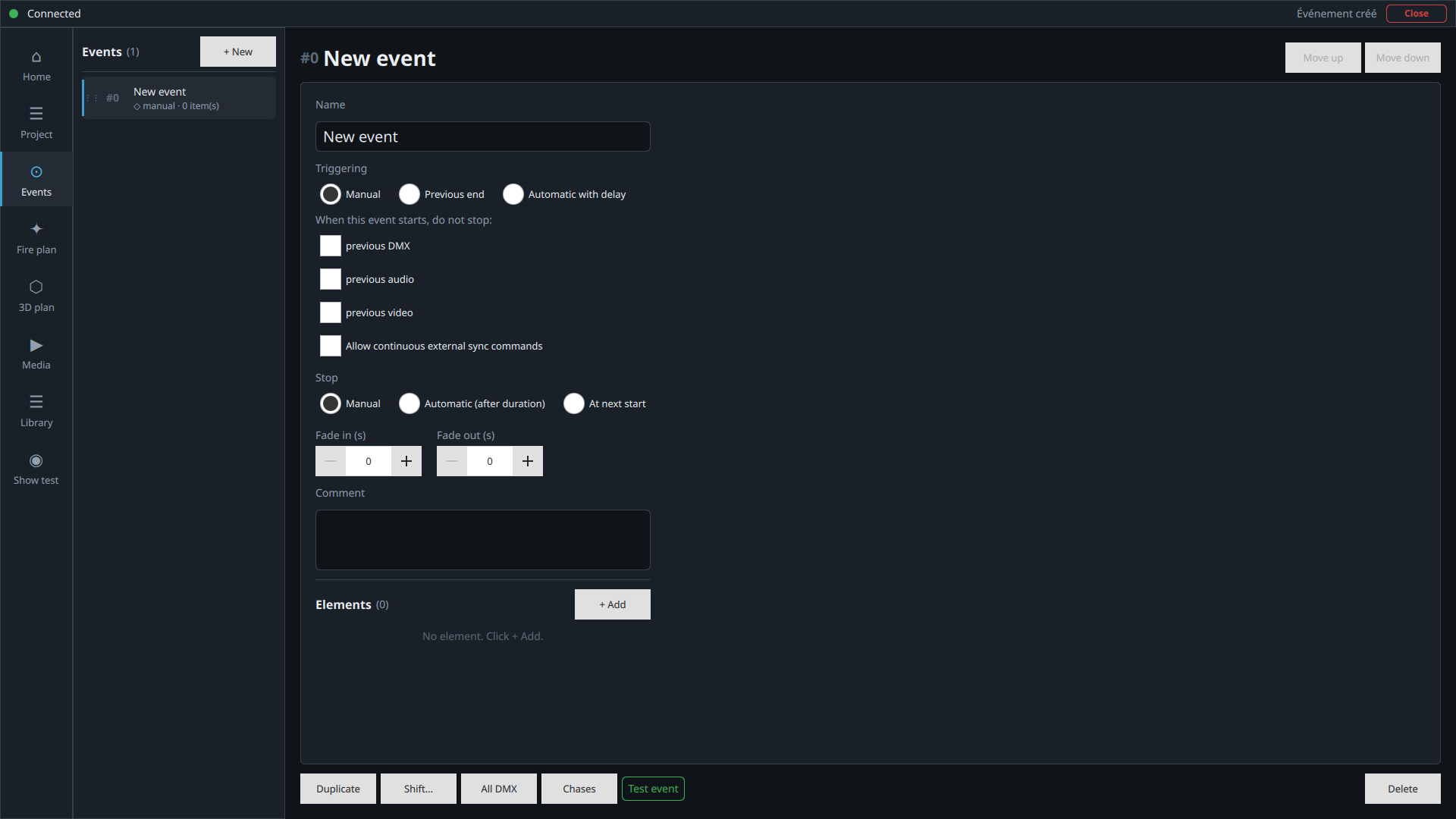
Name, triggering, and stop
A default name ("New event") is used at first; rename it to something clear —
for example Audience entrance for an ambiance that plays while the
audience settles in. Triggering defines how the event starts:
Manual — the operator triggers it by hand.
Previous end — starts automatically as soon as the previous
event ends (not applicable to the very first event).
Automatic with delay — starts at a fixed time, letting you
chain events without any manual intervention.
Stop works the same way in reverse: Manual,
Automatic (after duration), or At next start
(when the following event begins). For this first try, we'll keep it on Manual on
both sides.
The checkboxes under "When this event starts, do not stop:" let you keep
the previous event's DMX, audio, or video running instead of cutting it — handy
for layering ambiances. A separate option allows continuous external sync
commands (OSC, MIDI, motion capture) for this event.
dmx++ — Events
The full form for a newly created event.
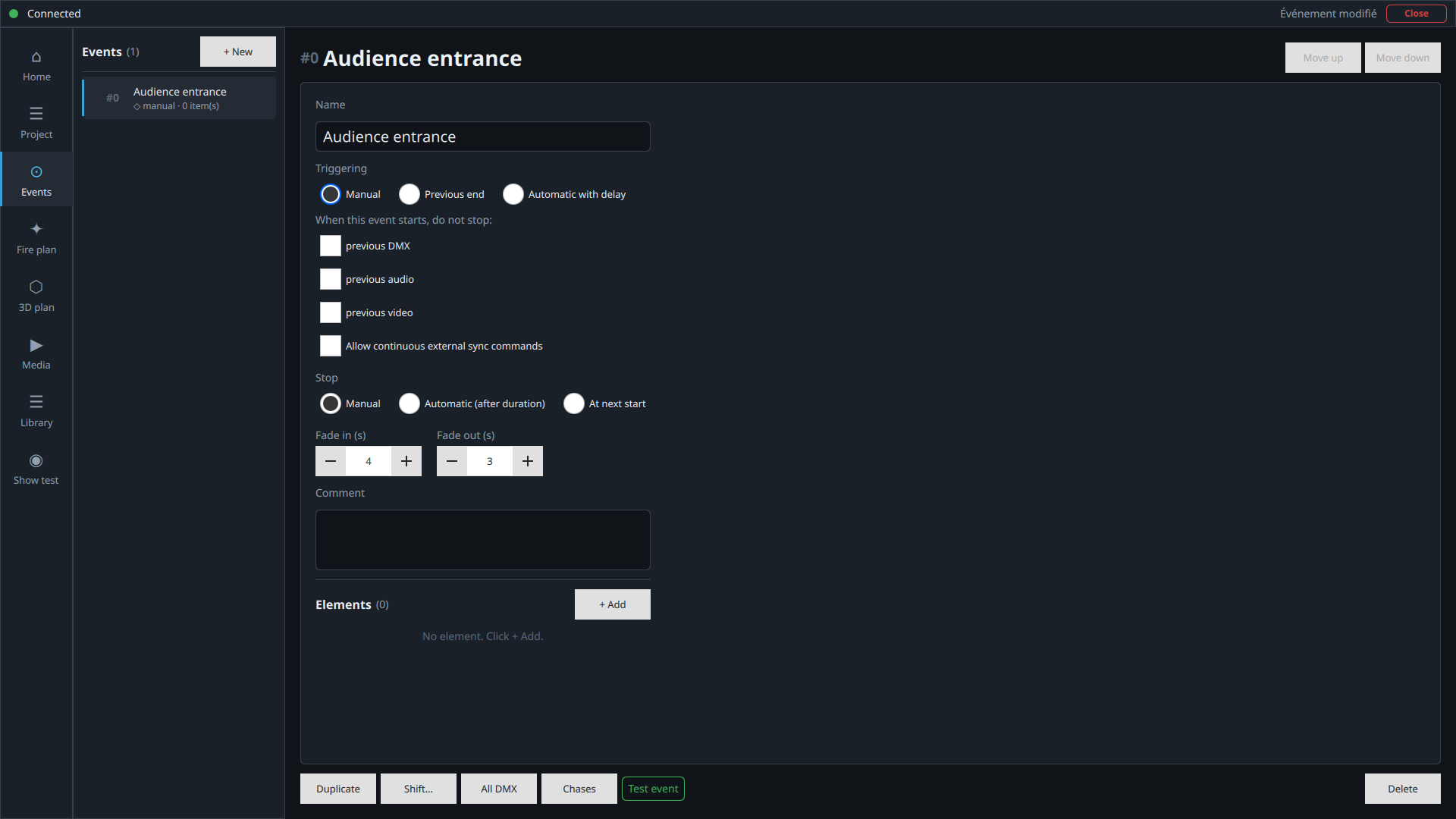
Fades
Every event has its own Fade in (s) and Fade out
(s), applied to every element it contains — audio included. These values
can also be overridden element by element, as we'll see further on. Here, 4
seconds of fade in and 3 seconds of fade out.
dmx++ — Events
"Audience entrance": manual trigger, 4 s fade in, 3 s fade out.
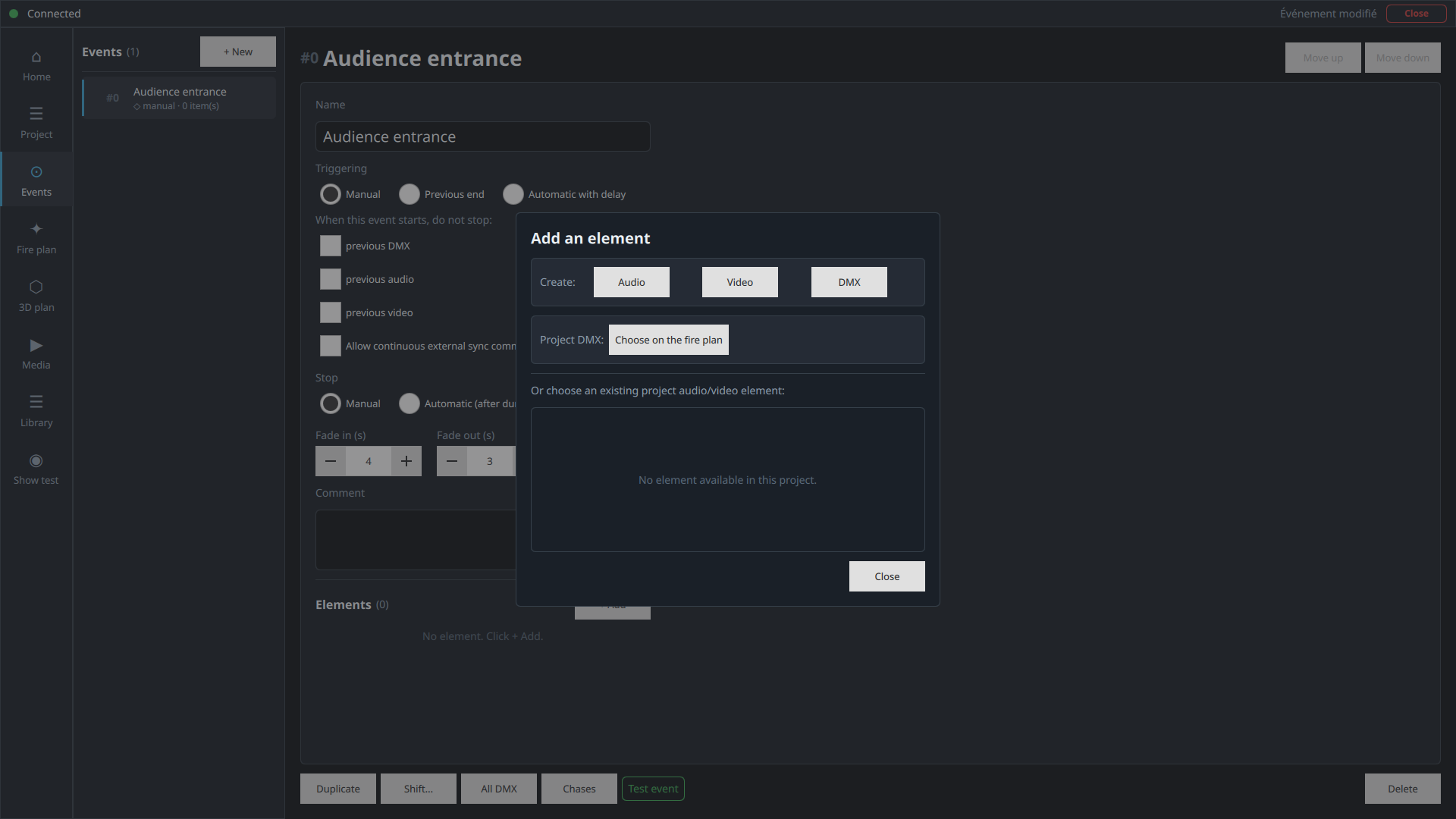
Add an element
In the Elements section, click + Add: a window
offers to create an Audio, Video, or
DMX element, to pick a project DMX fixture on the fire plan, or
to reuse an audio/video element already used elsewhere in the project.
dmx++ — Add an element
Three families of elements: Audio, Video, DMX — plus the fire plan and existing-elements shortcuts.
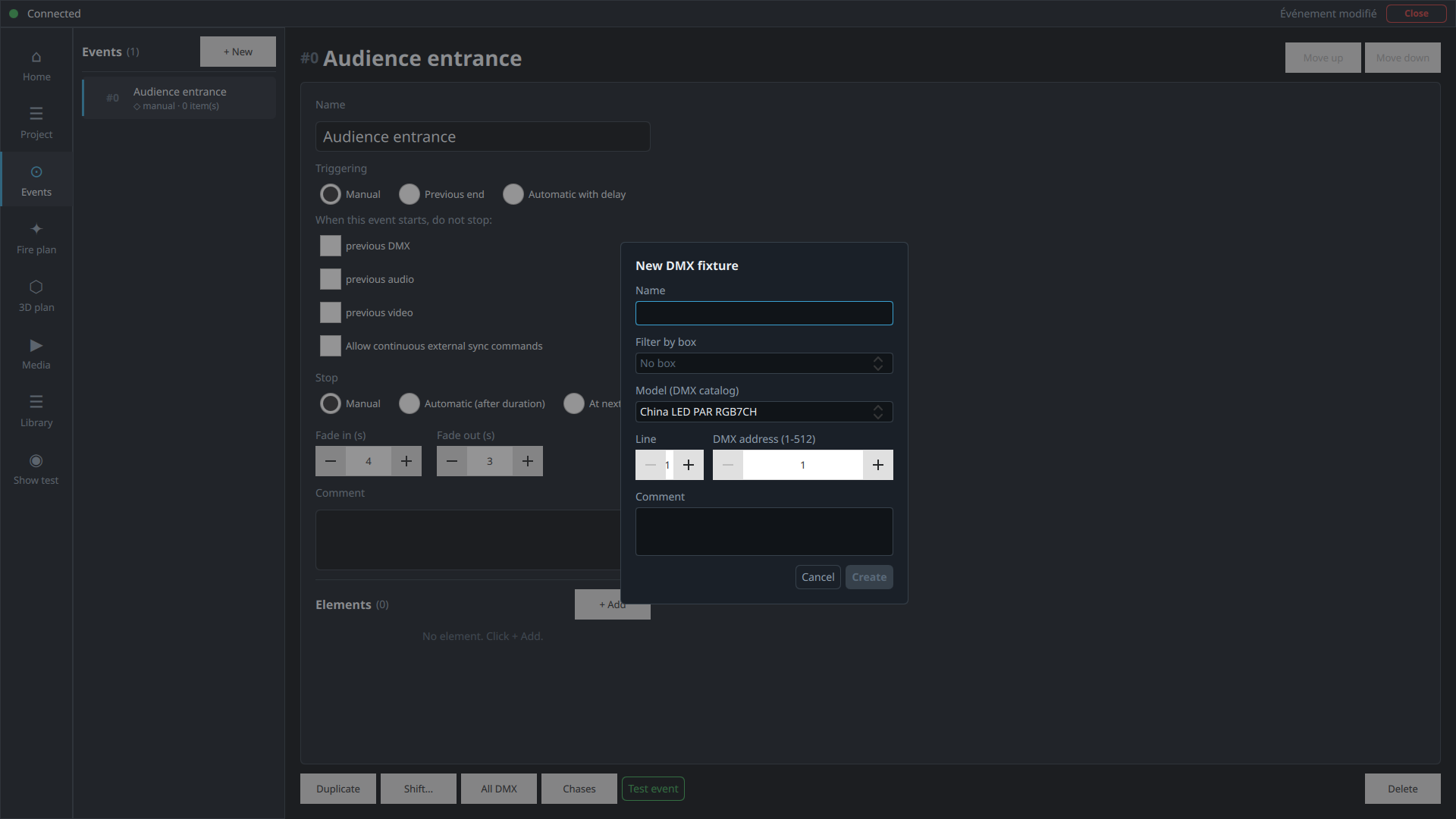
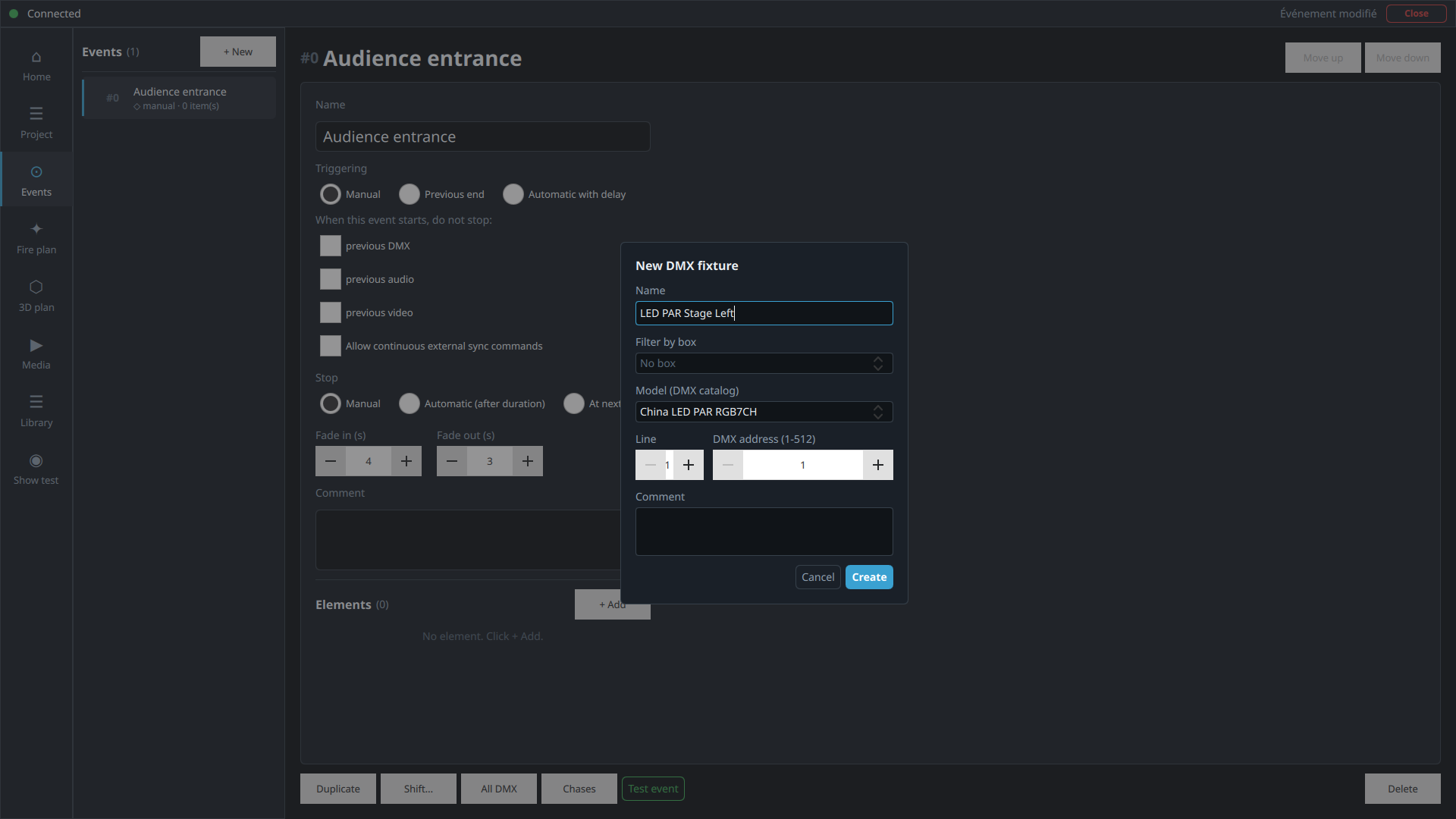
Clicking DMX opens the New DMX fixture dialog:
pick a Model from the DMX catalog (already declared in the
library — that's the next section if you don't have one
yet), give the fixture a name — for example LED PAR Stage Left — and the
DMX address is calculated automatically from the addresses
already in use, but stays editable.
dmx++ — New DMX fixture
The "New DMX fixture" dialog, model picked from the catalog.
dmx++ — New DMX fixture
Named "LED PAR Stage Left", address 1 — ready to create.
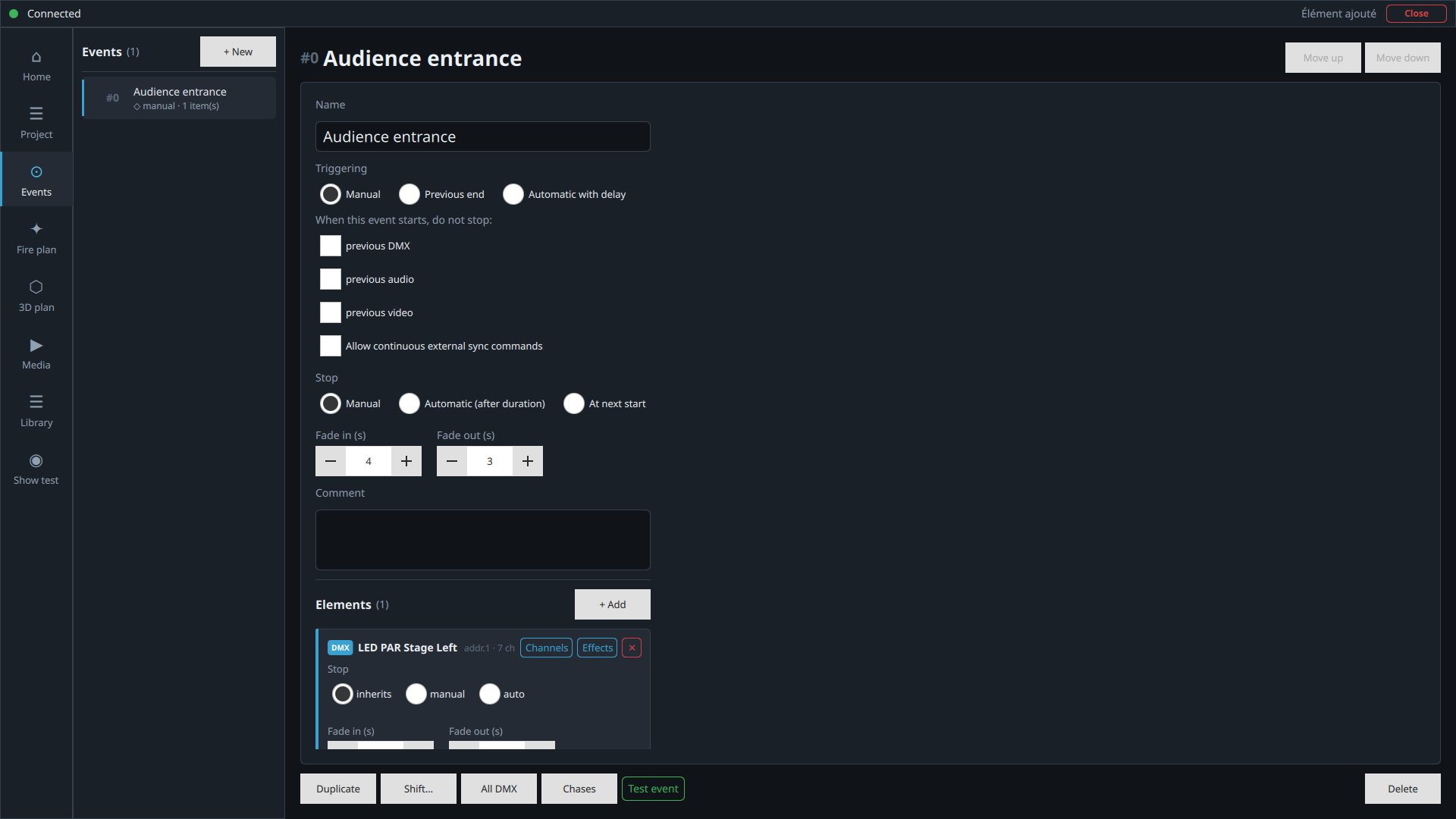
dmx++ — Events
The element has been added: stop mode (inherits / manual / auto) and its own fades, adjustable independently of the event.
Channels and effects
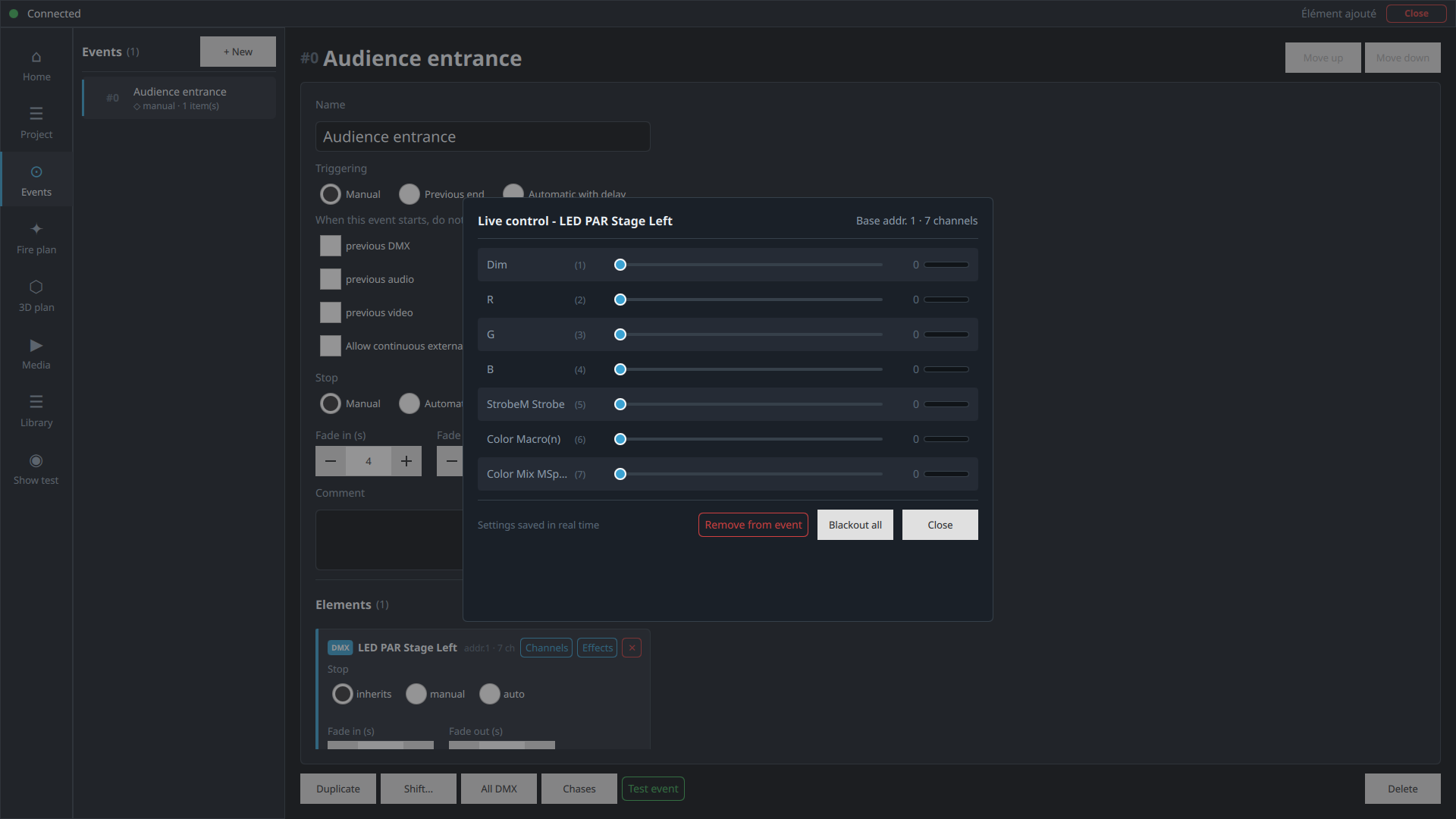
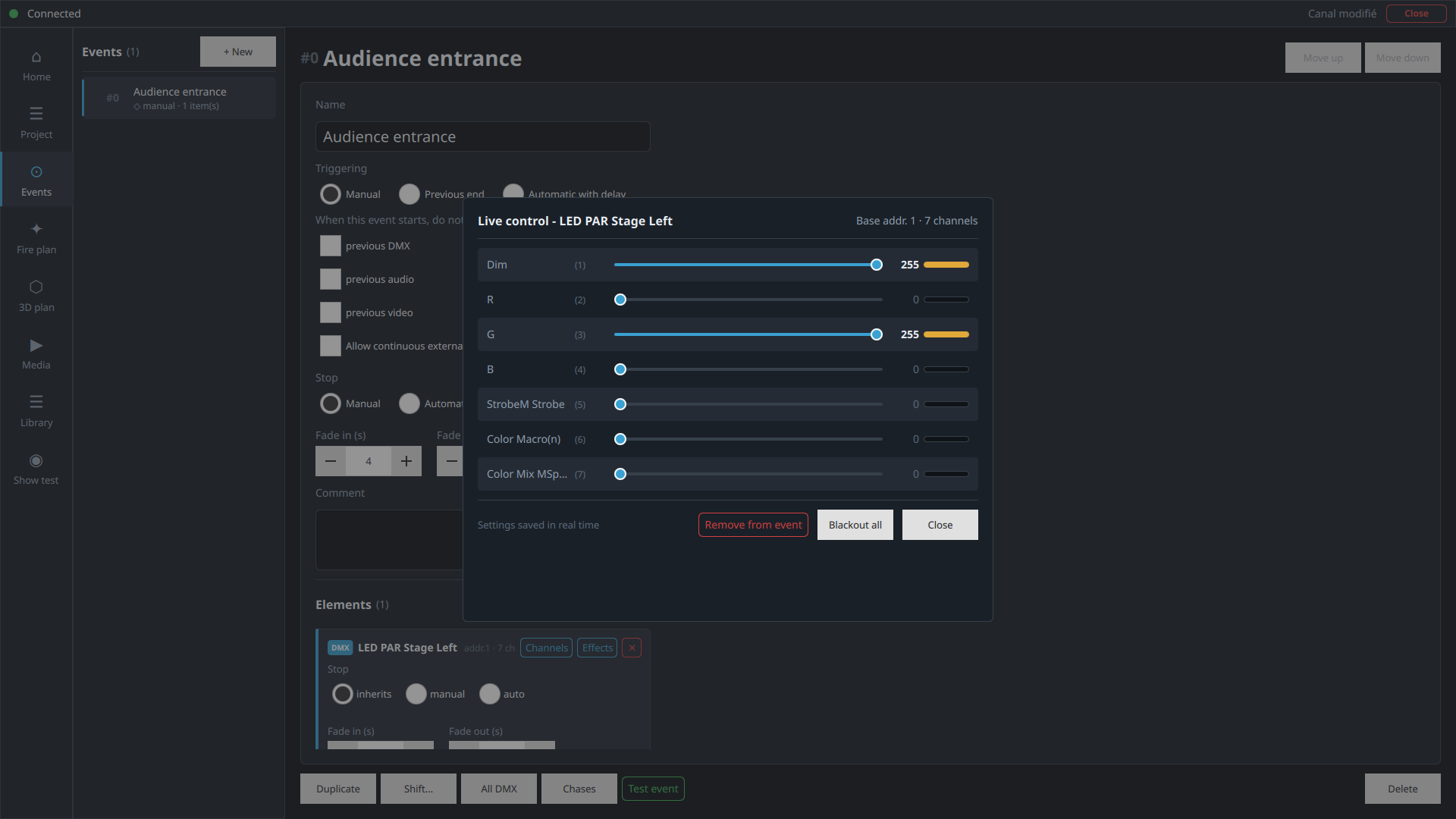
The Channels button opens a Live control panel:
values (0 to 255) are set with sliders, channel by channel, and apply in real
time if the fixture is plugged in. Here, Dim and the
G (green) channel are dragged to maximum.
dmx++ — Live control
The 7 channels of this fixture, all at 0.
dmx++ — Live control
Dim and G at maximum (255) — the other channels stay at 0.
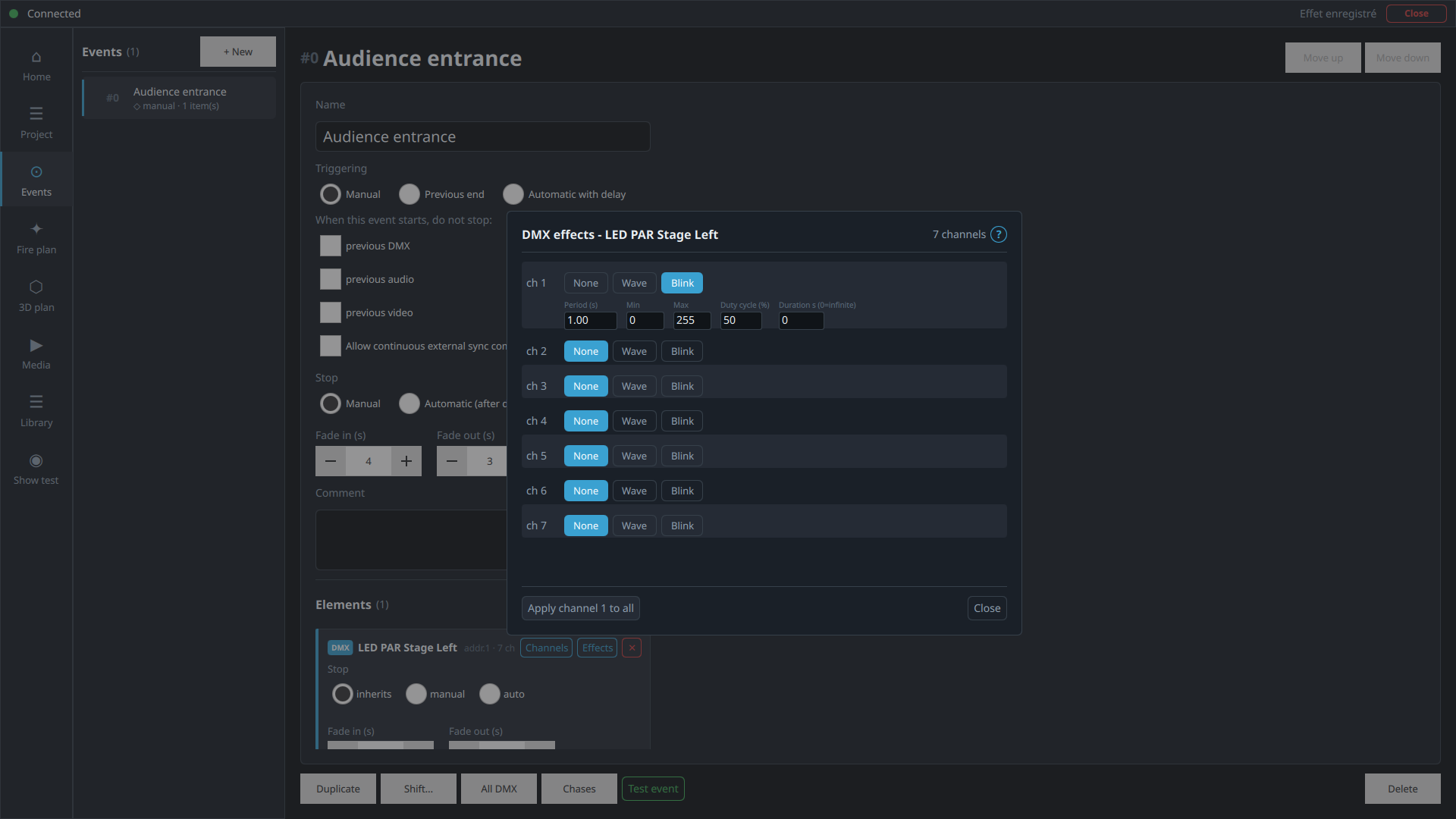
The Effects button opens DMX effects, which
adds a Wave or Blink pattern on any channel, set
by its Period (s) (the interval between two peaks — long for a
wave, short for a blink), its Min and Max, a
Duty cycle (%), and a Duration (0 = infinite).
dmx++ — DMX effects
"Blink" effect on channel 1: 1 s period, min 0, max 255, 50% duty cycle.
1.4
Library
Accessible from the left-hand rail, the library is where you declare the DMX
gear used by your shows. You declare the type of fixture — not
each individual unit: three identical fixtures only need one entry, their number
and position are set within the project.
The + button opens the catalog of pre-registered profiles —
several tens of thousands of manufacturer entries — filterable by category,
brand, and channel count, the same picker shown above when adding a DMX element.
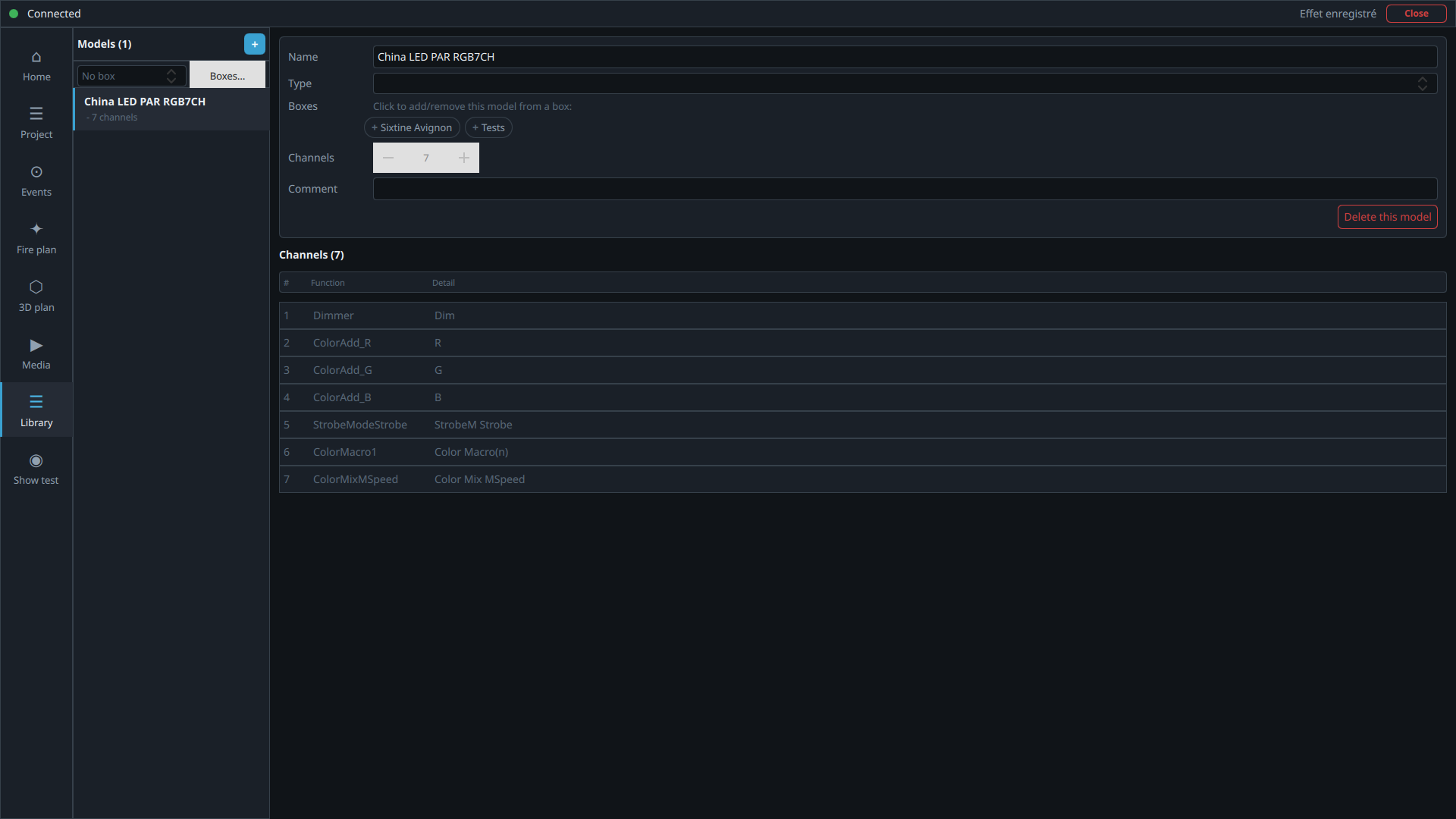
Once a model is chosen — here a generic 7-channel LED PAR, China LED PAR
RGB7CH — it appears in the left-hand column, where you can rename it, add it
to a box (a reusable group of gear), or edit its channels.
dmx++ — Library
The model's detail page and its channel table: # / Function / Detail, e.g. Dimmer → Dim, ColorAdd_R → R…
1.5
Fire plan
The fire plan positions the show's elements on a representation of the stage —
it's usually the most practical way to pick a DMX element once a project has more
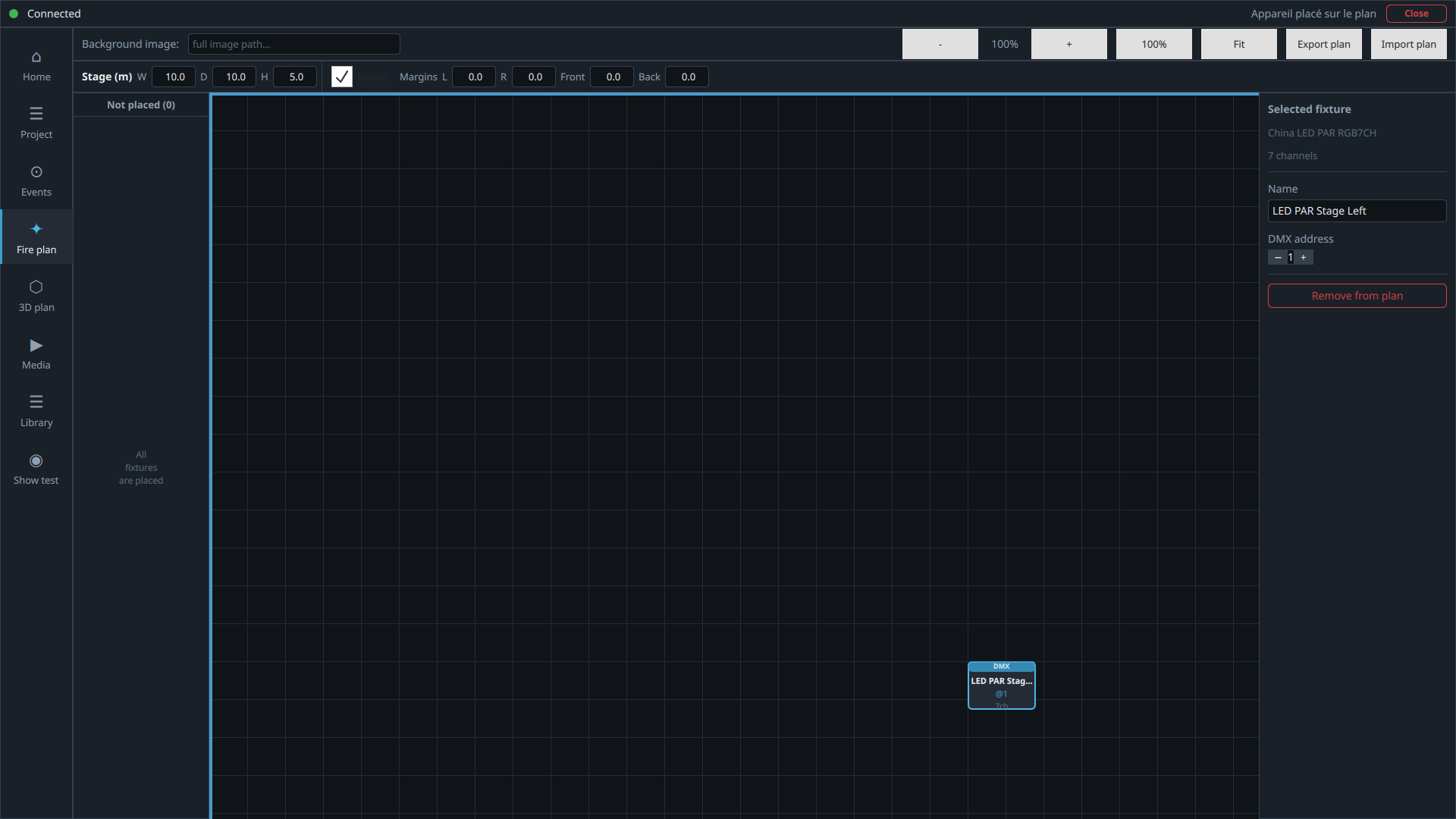
than a couple of them. The Not placed list on the left shows
unplaced fixtures; clicking Place drops one onto the grid, ready
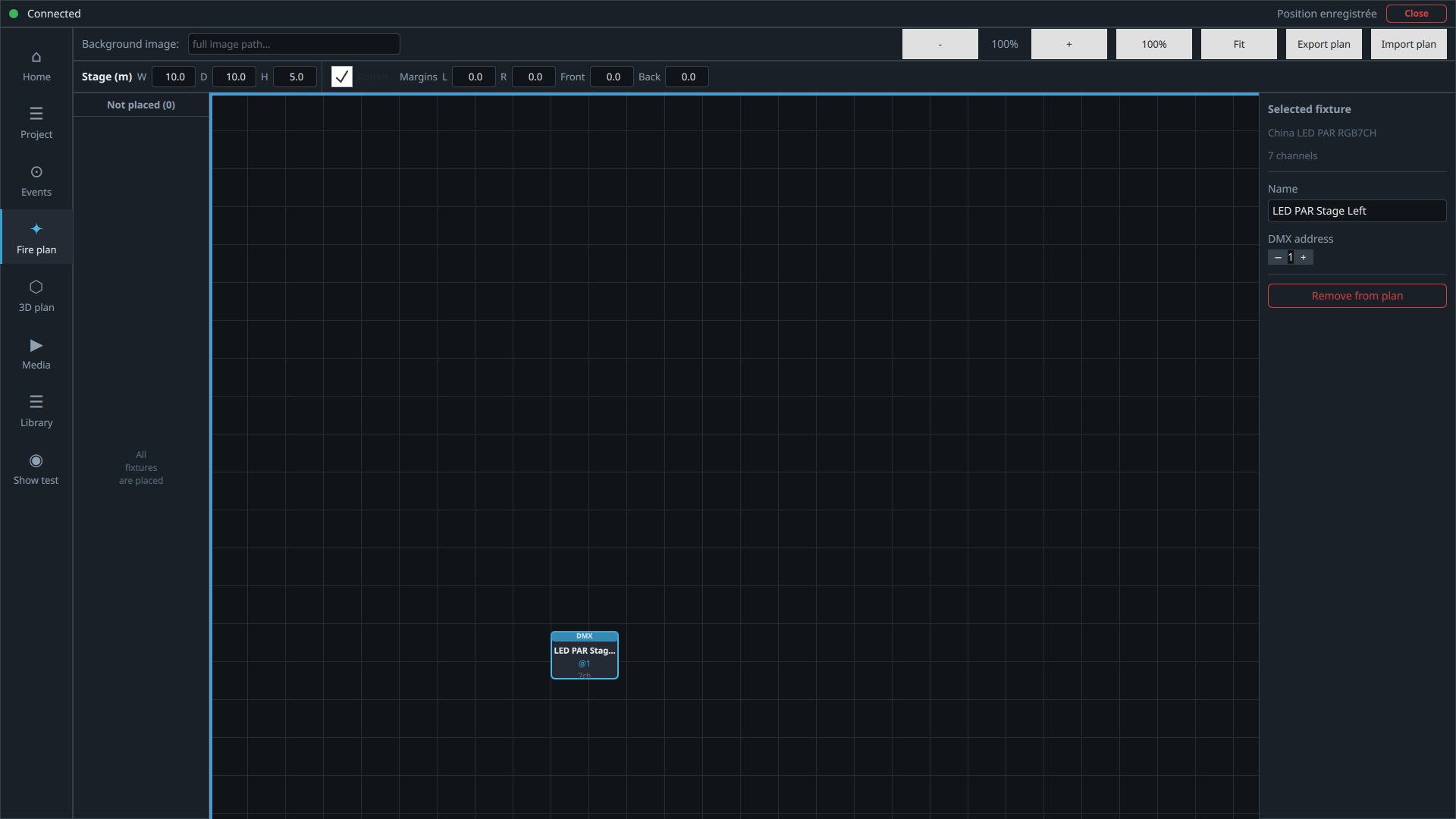
to be dragged to its real position.
If the fixture does not exist in the show yet, use +DMX: the same
fixture-creation dialog used from events opens with the models already created in
the library, and the new fixture then appears in the list ready to be placed on the plot.
dmx++ — Fire plan
The element, placed and selected: its name and DMX address stay editable from the right-hand panel.
dmx++ — Fire plan
Dragged toward stage left — "Position saved" confirmed at the top right.
The fire plan isn't mandatory, but it's strongly recommended, since it makes the following easier:
handing over to another operator mid-production;
exporting the show's technical data;
importing/exporting the plan for another show in the same
venue;
quick placement and adjustment of DMX elements directly from
an event.
1.6 · Add-on
3D plan
The 3D plan add-on lets you position elements at their exact location in the
venue (position, height), set the beam angle (laser) and its light cone, place
decor, and test a show even without any fixture plugged in. Ideal for a venue
whose fire plan doesn't change much: set it up once, then reuse it — or share it
with a company that also runs dmx++.
As in the 2D fire plan, the +DMX button can also create a new DMX
fixture for the show from the library models before you position it in the 3D space.
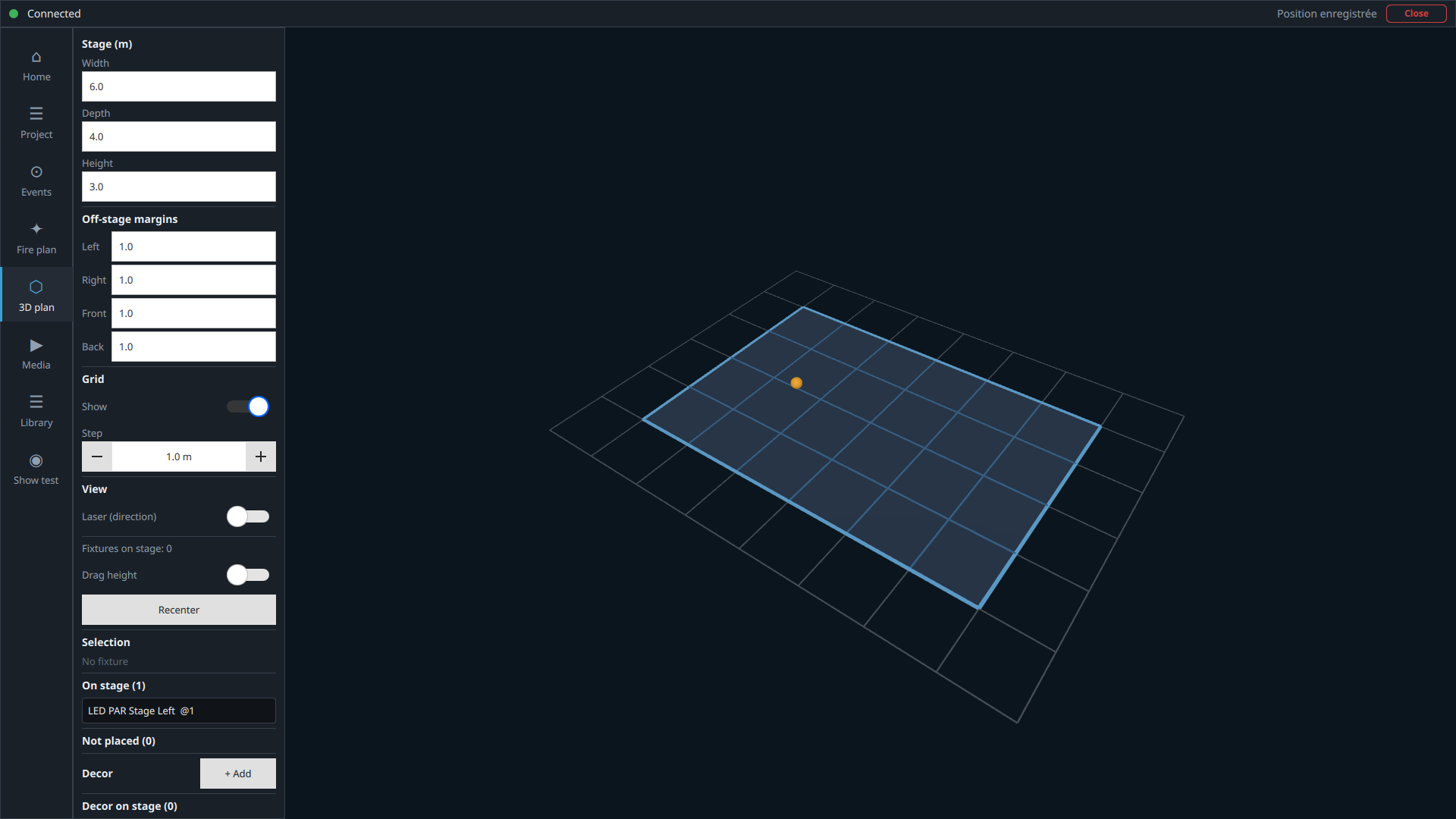
Start by defining the Stage (m) dimensions — Width, Depth,
Height — with, optionally, off-stage margins (Left/Right/Front/
Back) and an adjustable Grid step. Here, 6 × 4 × 3 m with a 1 m
margin on every side.
dmx++ — 3D plan
Stage 6 × 4 × 3 m, 1 m margin on each side: the yellow-orange dot is the fixture already placed on the fire plan.
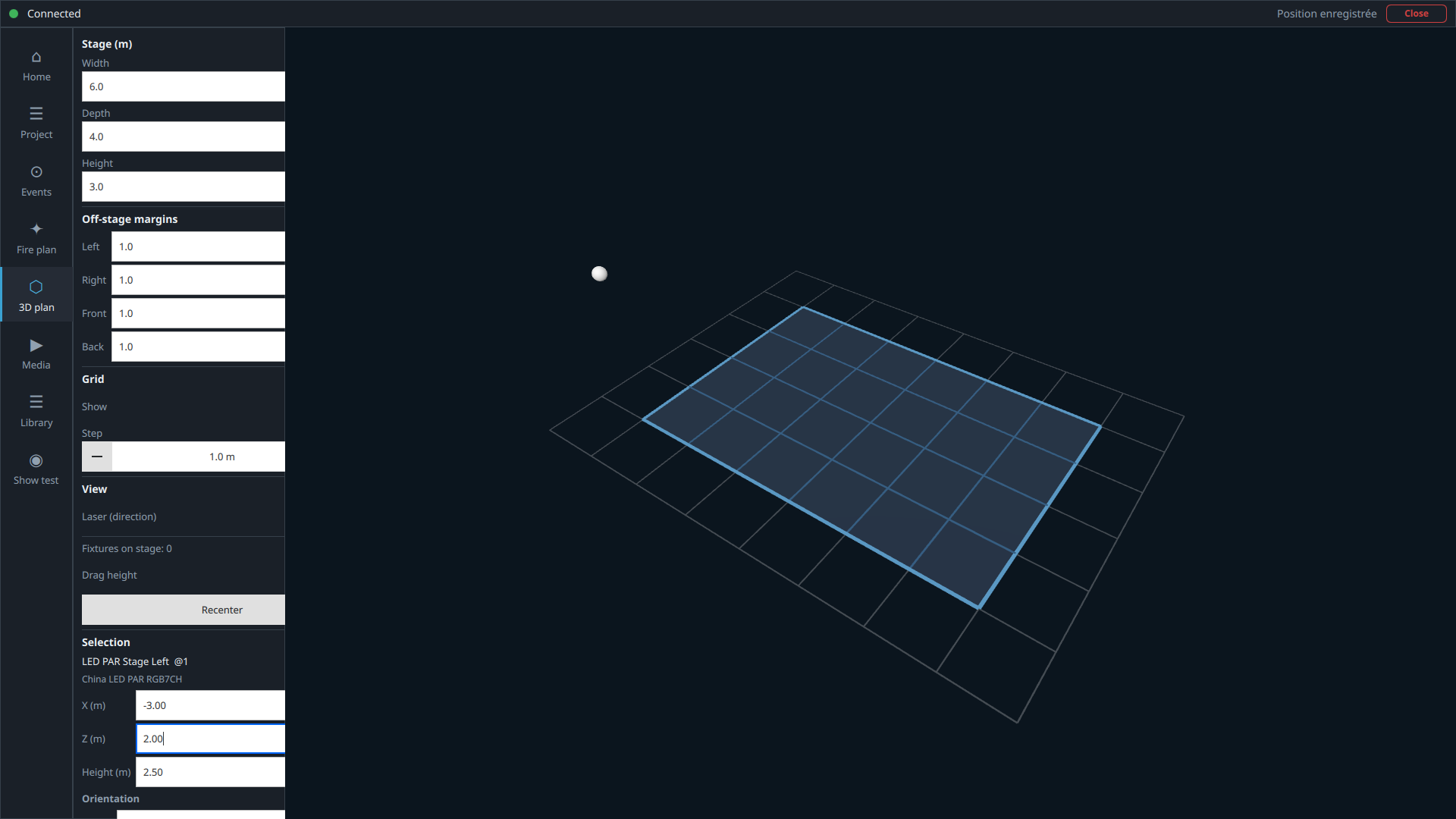
Clicking the dot turns the fixture white and selects it: the
X (m), Z (m), and Height (m)
fields position it precisely under Selection — the center of the
stage is point (0, 0). For a fixture stage left on a 6 × 4 stage, you could for
instance enter X = −3, Z = 2, and a height of 2.5 m.
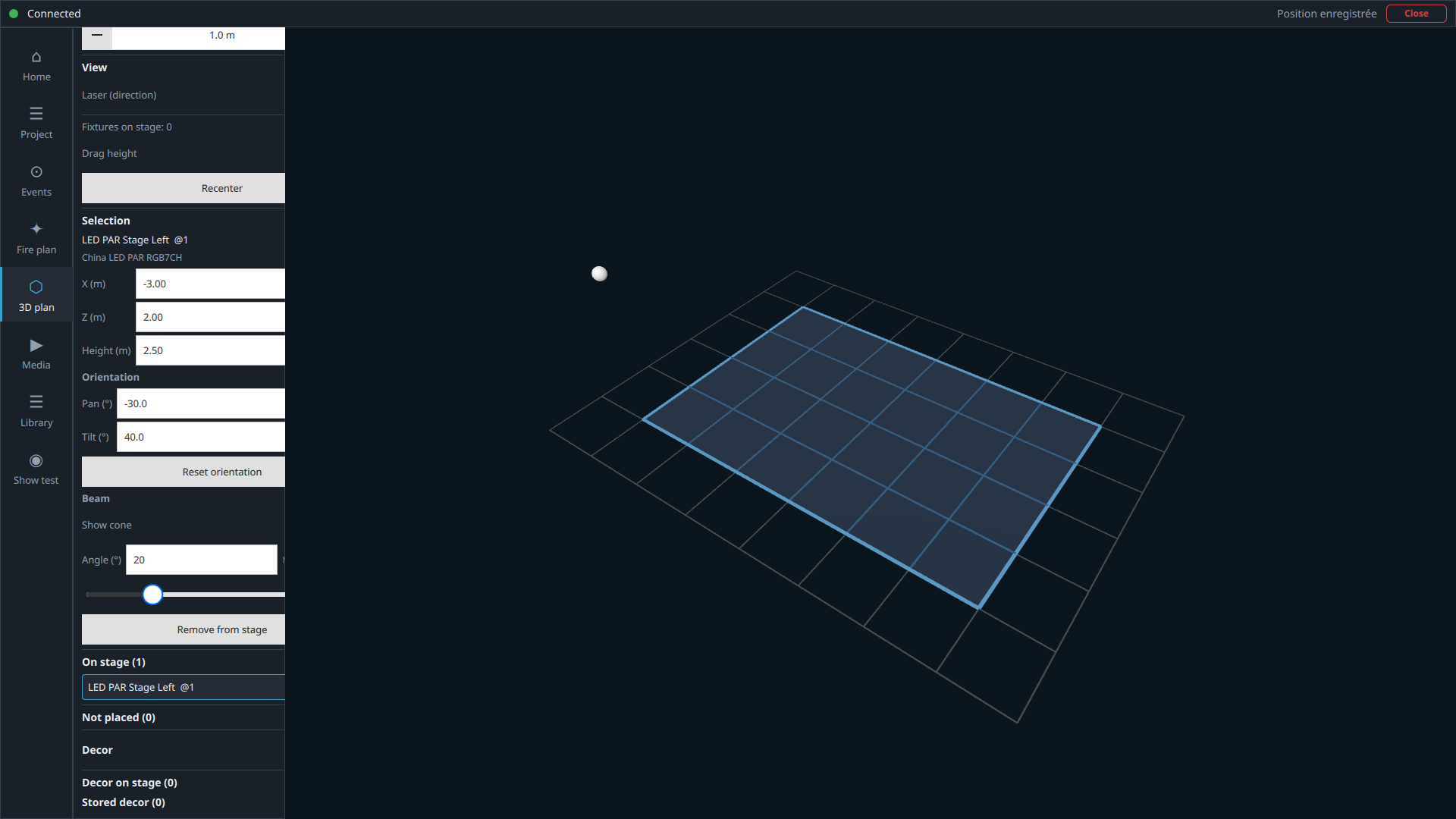
Under Orientation, Pan (°) (horizontal rotation)
and Tilt (°) (vertical angle) can be entered just as precisely,
or set directly with the mouse by clicking and dragging the dot. The
Beam section then lets you toggle Show cone and
set its Angle (°) to preview the spread; the Laser
(direction) toggle under View visualizes the beam
direction as a line.
dmx++ — 3D plan
Position set: X = −3 m, Z = 2 m, Height = 2.5 m.
dmx++ — 3D plan
Orientation and beam: Pan −30°, Tilt 40°, cone angle 20°.
1.7 · Tied to the 3D plan
Show test
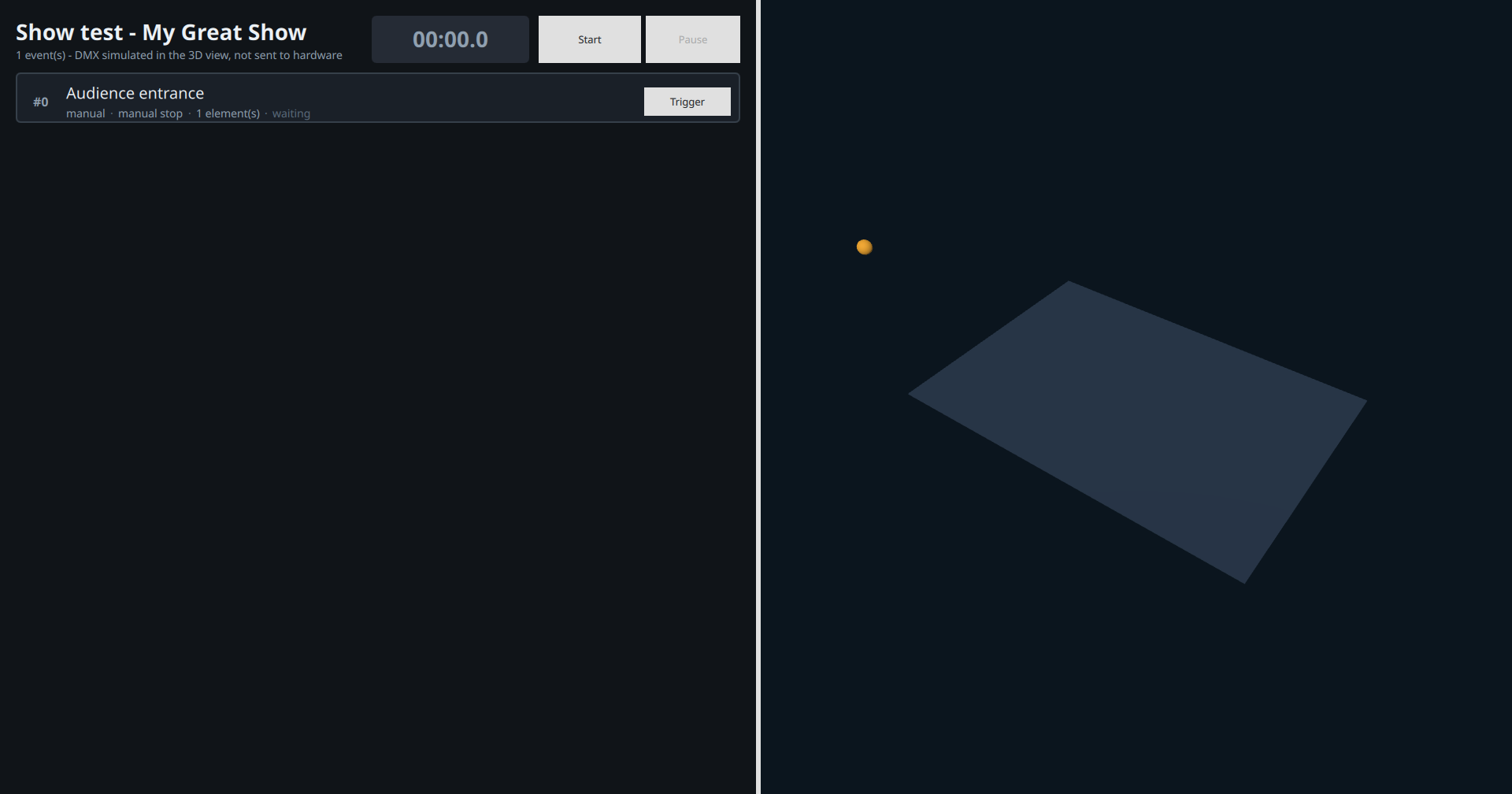
The show test opens a window split in two: on the left, the run-through as it
will appear in the real show control; on the right, the 3D stage with the
simulated DMX output — "DMX simulated in the 3D view, not sent to
hardware."
dmx++ — Show test
The show's run-through on the left, the 3D stage on the right; the timer is still stopped.
The Start button starts the show timer — an essential reference
for any events scheduled with a delay. Clicking Trigger (or
pressing the Space key, per the "Space: trigger/stop"
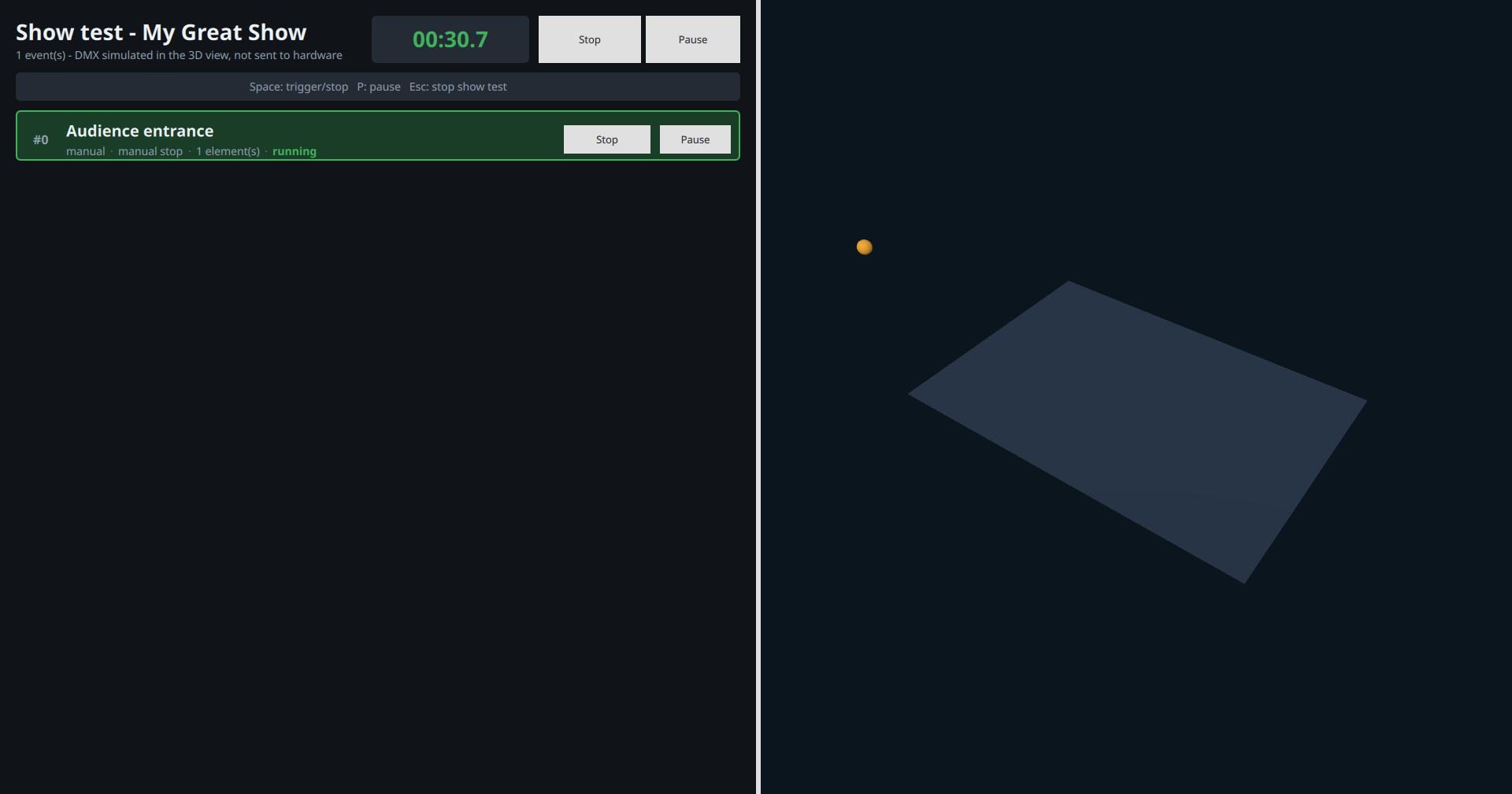
shortcut bar) starts the event, which turns green and "running": in the 3D scene,
the beam reaches full intensity after the programmed fade in.
dmx++ — Show test
Event "running" (green) — the timer keeps counting while it plays.
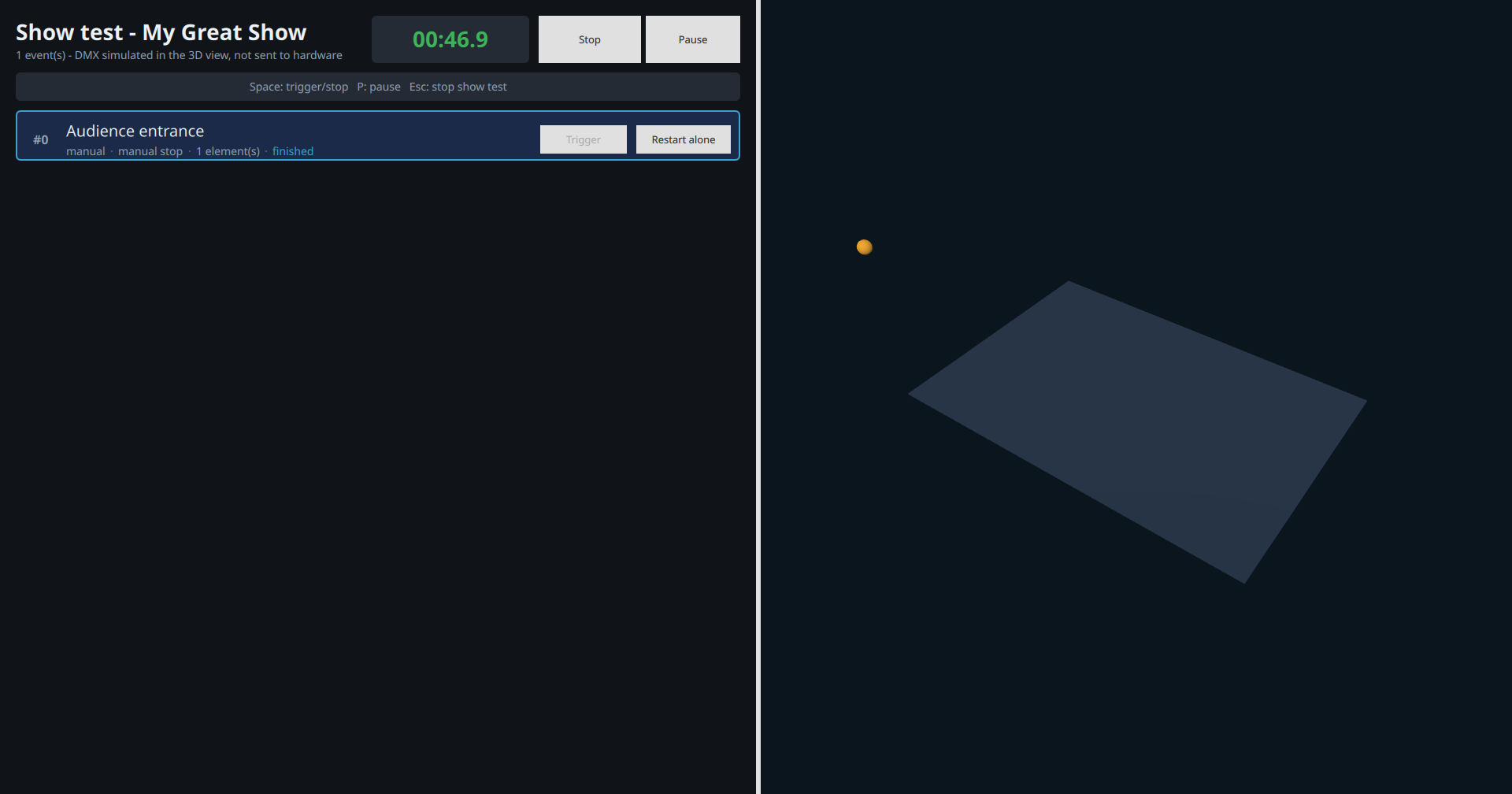
Clicking Stop fades the event out over the programmed fade-out
time. Once finished, the event turns finished (its border and
label turn blue), and a Restart alone button lets you trigger it
again independently of the rest of the run — handy if there's an operator mistake
during a real show.
dmx++ — Show test
Event "finished" — ready to be restarted alone if needed.
Remember to click Stop (or press Esc) on the
show test itself once you're done, otherwise the engine keeps running this test
show in the background.
Well done — you've just programmed and tested your first dmx++ show.
1.8
Going further: chaining events
Once you've got the basic mechanics down, you can build richer run-throughs by
combining the settings covered above. A few things to try with the project you
built in this tutorial:
Switch the first event's triggering to Automatic with delay
(for example 2 s from the start of the show): during the show test, the event
then starts on its own, with no button to click — the fade in gradually
reveals it.
Add a second event — After current event — triggered by
Previous end, with its own DMX element (for example a second
fixture, "Stage Right", with the next address suggested automatically). The
two events then chain automatically, one after the other.
Give each event an automatic stop after a different duration,
and add a second DMX element to one of them with its own fades: the fade ins
and fade outs of the different elements then overlap naturally, for smooth
transitions between two looks.
By combining delays, automatic stops, and per-element fades, you end up with a
fully automatic show that runs from start to finish the moment
you press Start — exactly like the fireworks show mentioned in the introduction.
Ready to program your own show?
Download dmx++ for free for 30 days and work through this tutorial at your own pace.