
dmx++
Show Control Guide
Prepare, start, and run a show
with the Show Control application.
The operator running an already prepared and tested project. This guide focuses on live operation. Project creation, events, and DMX fixtures are covered in the full user manual.
October 2026 edition
1. Before opening
Run these checks before the audience enters. They help avoid discovering a link, media, or DMX problem during the show.
| Check | Expected result | |
|---|---|---|
| □ | Server | The top banner says the server is connected and no DMX link alert is displayed. |
| □ | DMX interface | The correct interface is selected in the Library and fixtures react to the hardware test. |
| □ | Project | The project appears in the active projects list. Its name and version match today's show. |
| □ | Media | Audio and video files are present on the show computer and routed to the right outputs. |
| □ | Show test | Events, fades, sequences, and stops have been checked from the Editor. |
| □ | Blackout | The B key and Blackout button have been identified before the show starts. |
Open Show Control
- From the Launcher, open Show Control.
- Keep the Active only filter, then click Choose for the project.
- Check the project name and the number of loaded events.
- Click Start only at the agreed cue.
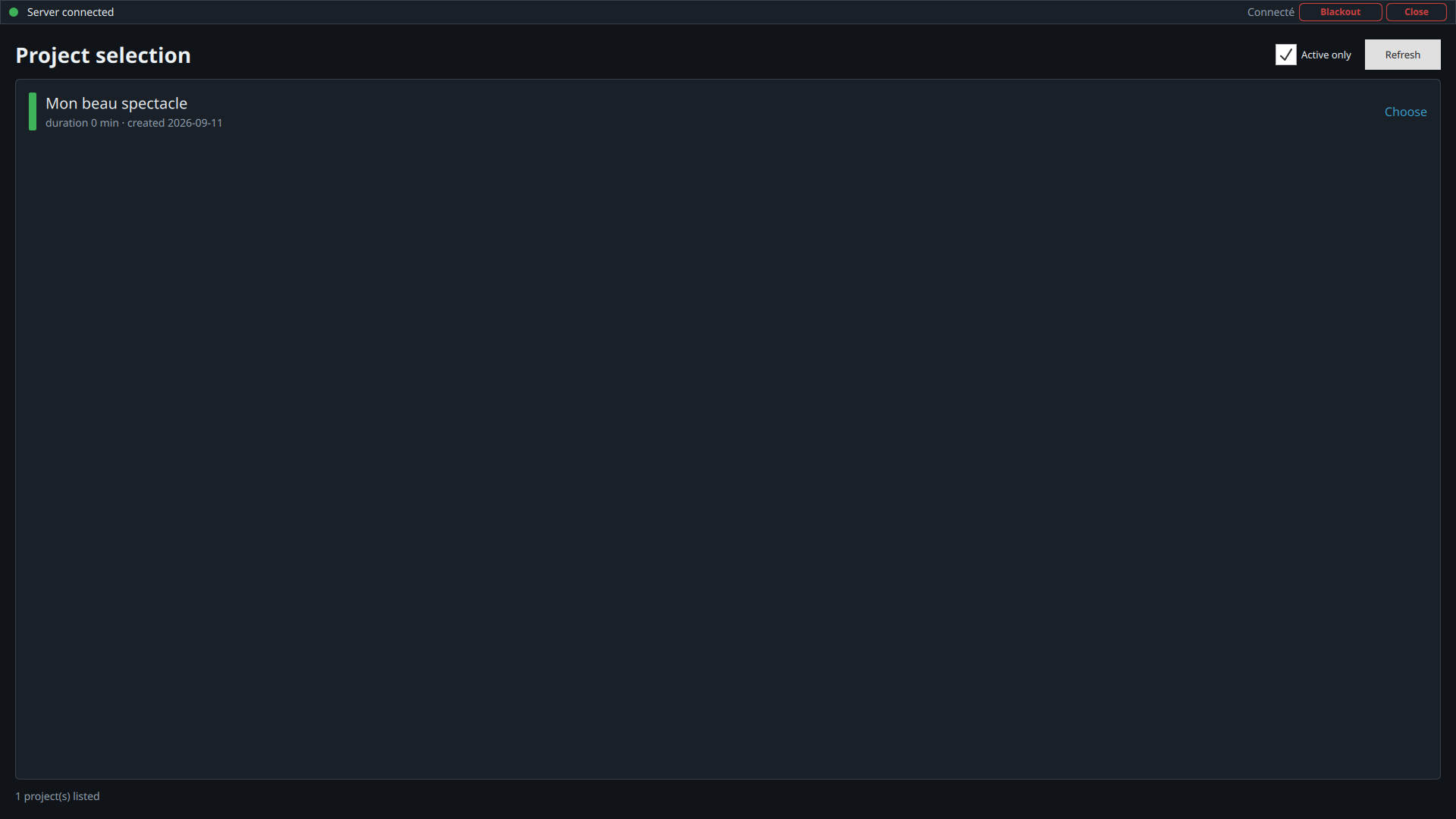
By default, the selection screen only shows active projects.
2. Read the live screen
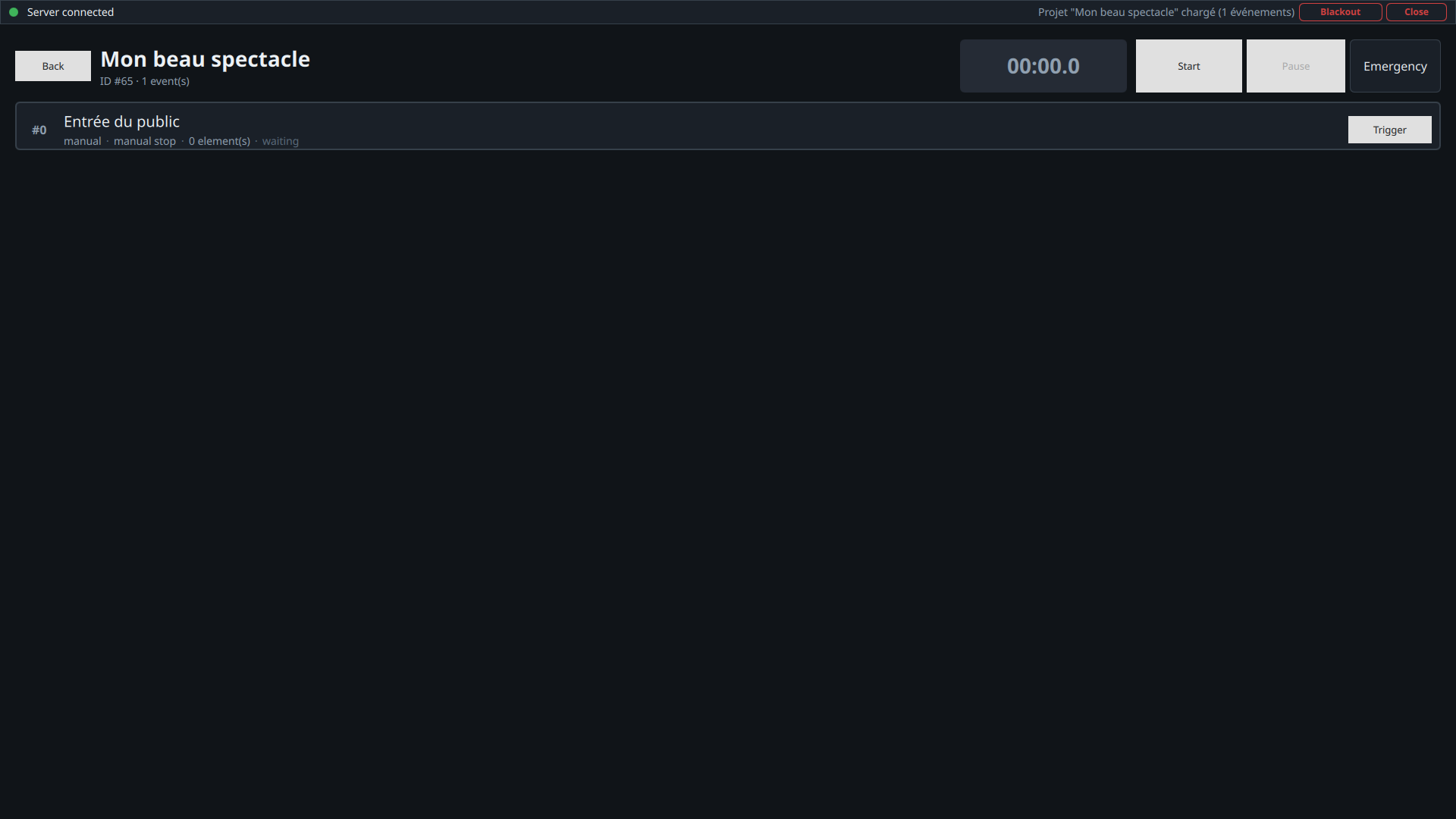
Show toolbar, timer, and event list.
| Area | Role |
|---|---|
| Back | Returns to project selection. It is available only when the show is stopped. |
| Project | Shows the name, identifier, and number of loaded events. |
| Timer | Elapsed time since start. It is green while running and amber during a global pause. |
| Start / Stop | Starts or stops the whole show. |
| Pause / Resume | Freezes or resumes the show and currently running events. |
| Emergency | Displays the fixture plot beside the event list to monitor devices. |
| Blackout | Immediately cuts DMX output. It remains available even when the show is stopped. |
Controls visible during the show
- +10s, +30s, +1min: moves the current show time forward.
- -10s: moves the current show time backward. Use carefully, as automatic event state may change.
- Grandmaster: adjusts the global intensity of Dimmer channels. Colors and positions are not changed.
3. Run events
Each row is an event. It shows its position, name, trigger mode, stop mode, number of elements, and state.
Understand states
| Appearance | Meaning |
|---|---|
| Amber border | Next manual event ready to trigger. |
| Green | Event starting or currently running. |
| Blue | Event finished. |
| Brown background | Event currently paused. |
| No marking | Event waiting. |
Event controls
- Trigger starts a waiting manual event immediately.
- Stop interrupts the selected event. For an "at next start" stop, the button is dimmed because the normal stop will happen when the next event is triggered.
- Pause / Resume acts only on this event.
- Replay alone replays a finished event without changing the rest of the show.
Keyboard shortcuts
| Key | Action |
|---|---|
| Space | First stops the first running event that expects a manual stop. Otherwise, triggers the next waiting manual event. |
| P | Global pause or resume. |
| Esc | Stops the whole show. |
| B | Enables or disables global DMX blackout. |
Show-control shortcuts are active regardless of which field or button has focus. Space, P, and Esc require a running show; B remains available at any time.
4. Safety and unexpected situations
Pause, stop, and blackout are different actions
| Action | Effect | Use it when |
|---|---|---|
| Pause | Freezes show time and pauses running events. | A temporary interruption is expected to resume at the same point. |
| Stop | Ends the current run and closes associated media playback. | The show is over or the session is abandoned. |
| Blackout | Immediately forces DMX output to zero. The timeline may continue. | An immediate dark stage is required or a lighting incident occurs. |
Emergency mode
The Emergency button splits the screen between the compact event list and the fixture plot. The plot shows the instant state of DMX fixtures. This mode keeps show control available while you quickly locate a fixture or stage area.
Media panel
Outside Emergency mode, the right-hand panel shows current audio and video media. It lets you monitor their position and adjust their volume. A global pause suspends media along with the rest of the show.
Common alerts
| Alert | Response |
|---|---|
| DMX link error | Keep Show Control open, then check the cable and interface. The server automatically tries to reconnect. Use the fixture plot to monitor the logical state. |
| Show already running | Check that no other workstation is operating the show. Stop the old session only if it has been abandoned. |
| Event warning | Identify the missing or invalid element. Avoid restarting repeatedly before understanding the cause. |
| Missing or silent media | Check the media panel, volume, local file, and the computer's audio/video output. |
5. Finish cleanly
- Let the last event finish unless an immediate stop is required.
- Click Stop or press Esc.
- Check that the timer is stopped and media players have disappeared.
- Remove blackout if it is still active, then check the expected output state.
- Use Back to leave the project, then close Show Control.
Quick memo
| Start | Choose the project, check its name and events, then click Start. |
| Next cue | Space |
| Global pause | P, then P again to resume. |
| Global stop | Esc or the Stop button. |
| Immediate dark stage | B or Blackout. The timeline may continue. |
| Single event | Use its Trigger, Stop, Pause, or Replay alone buttons. |
| Monitor fixtures | Enable Emergency to display the fixture plot. |
| Correct time | Use +10s, +30s, +1min, or -10s carefully. |
| Adjust intensity | Adjust the Grandmaster; it acts on Dimmer channels. |
dmx++ · Show Control Guide