Launcher
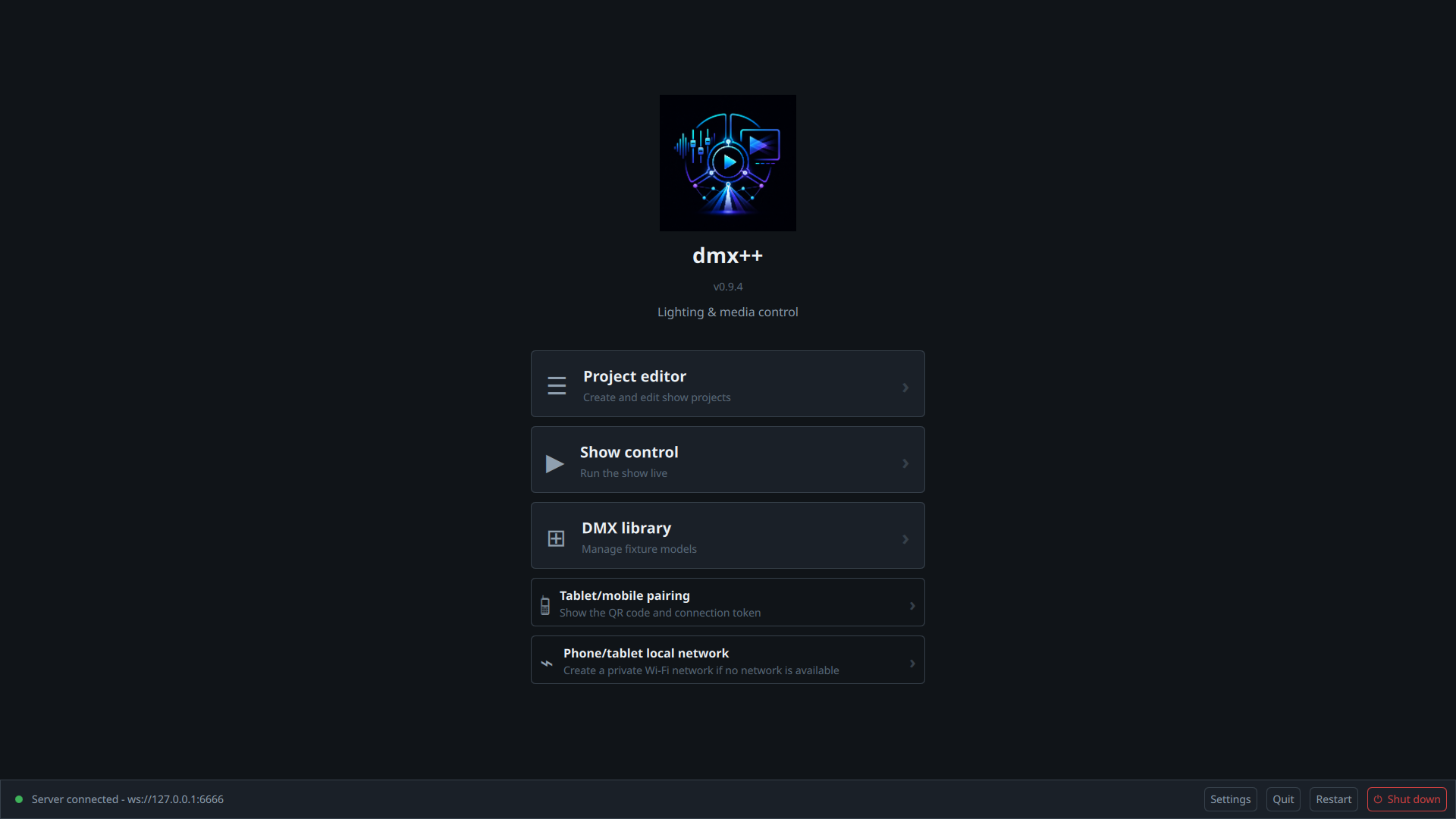
The Launcher is the home screen of dmx++. It opens full-screen on startup and gives access to every module.
First launch
On first launch, if no license is detected, an activation window appears
automatically. Enter your license key (format
DMXP-XXXX-XXXX-XXXX-XXXX, sent by email) and confirm — an internet
connection is required to reach the license server.
Without a license, you can continue in restricted trial mode, available as long as the 30-day free trial hasn't run out.
License status banner
A colored banner appears at the top of the Launcher when the license isn't valid:
| Color | Meaning |
|---|---|
| Amber | Trial mode — shows the number of days left |
| Orange | License expired — updates are disabled |
| Red | License invalid or missing — restricted mode |
A blue banner also appears when a new version is available, with a link to dmxplus.fr — the check runs automatically on startup. Free-trial installations are checked too, so they get fixes without waiting for a license purchase. Each license allows 1 update download per version.
A green banner 🔑 "An update to your license is available" appears when your license has been changed on our servers (add-on purchased, online backup subscribed…). Click "Update my license": the new license file is downloaded and installed; then restart any modules already open so the new options take effect. If it fails (network, unrecognized key), the banner shows the error and a "Retry" button.
Main buttons
Five buttons are available on the main screen:
- Project editor — create and edit show projects.
- Show control — run the show live.
- DMX library — manage fixture models and the hardware interface.
- Tablet/mobile pairing — shows a QR code, the server address, and the connection token to pair the mobile or tablet app. The device must be on the same network as the show computer.
- Phone/tablet local network — creates a private Wi-Fi network on the show computer (name, password, server address shown) when no shared network is available on site. Can temporarily disconnect the computer's usual Wi-Fi.
At the bottom of the screen, the status bar shows the server connection indicator (green = connected, red = disconnected) with its address, plus a Settings button (language, among other things), and three buttons: Quit (closes dmx++), Restart, and Shut down (restart/shut down the machine) — each requiring confirmation.
Editor
The Editor is used to create and edit every show project. It opens full-screen; navigation runs through the vertical rail on the left: Home, Project, Events, Fire plan, 3D plan, Media, Library, and Show test in a separate window. A status bar at the top shows the server connection state and any error messages.
Home
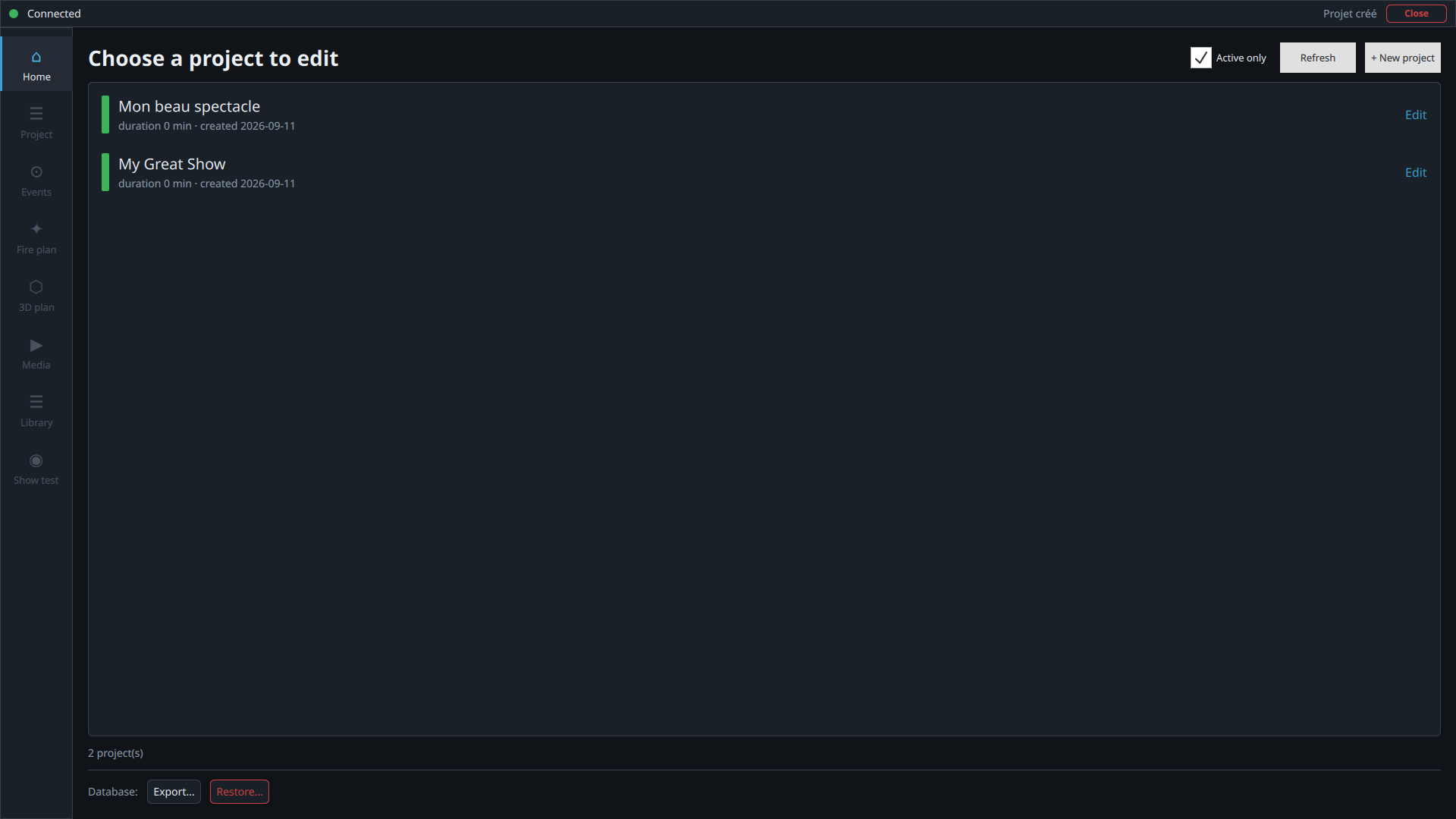
Lists every available project: name, duration, status (active / archived), and number of events. Click a project to select it and access the other sections.
- Refresh — reloads the list from the server.
- + New project — creates a blank project (asks for a name).
At the bottom of the page, the Database frame groups the backups (detailed in §6):
- Local backup — Export (local) saves the complete database to a file; Restore (local) reloads a previously exported file.
- Server backup — only shown if your license includes the Online backup option: Export (server) uploads the database to the dmx++ servers, Restore (server) retrieves it.
Project
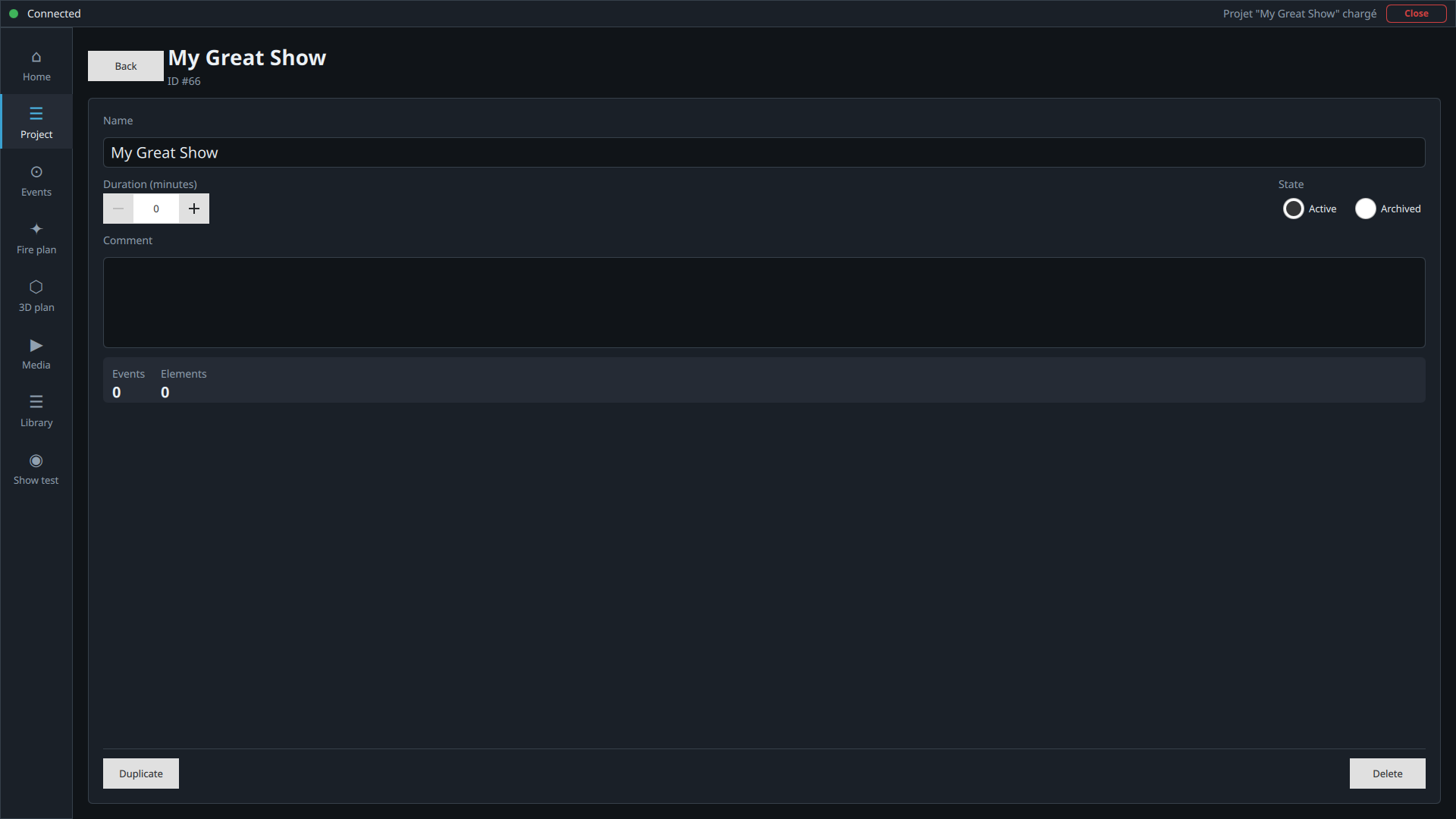
Edits the metadata of the selected project: Name, Duration (indicative), State (Active or Archived), free-text Comment. At the bottom of the page: Duplicate (a full copy of the project) and Delete (permanent, confirmation required). Statistics (number of events, number of elements) are shown for reference.
The Show report PDF button generates a document for the selected show containing general instructions, the fire plan, the DMX patch, and the detailed running order with event comments. The PDF is saved to the selected local location and, with a valid license, the same version is uploaded to the dmx++ server.
The Project page is also where you exchange the project's fire plan:
- Local fire plan — Export (local) saves the plan as a JSON file; Load a fire plan (local) imports one into the selected project.
- Server fire plan (valid license required) — Export (server) uploads the plan to the dmx++ servers with a unique, explicit name and a mandatory comment (exact name and address of the venue); Load a fire plan (server) lists the stored plans (name, date, comment) so you can retrieve one. This service is free with the license.
Events
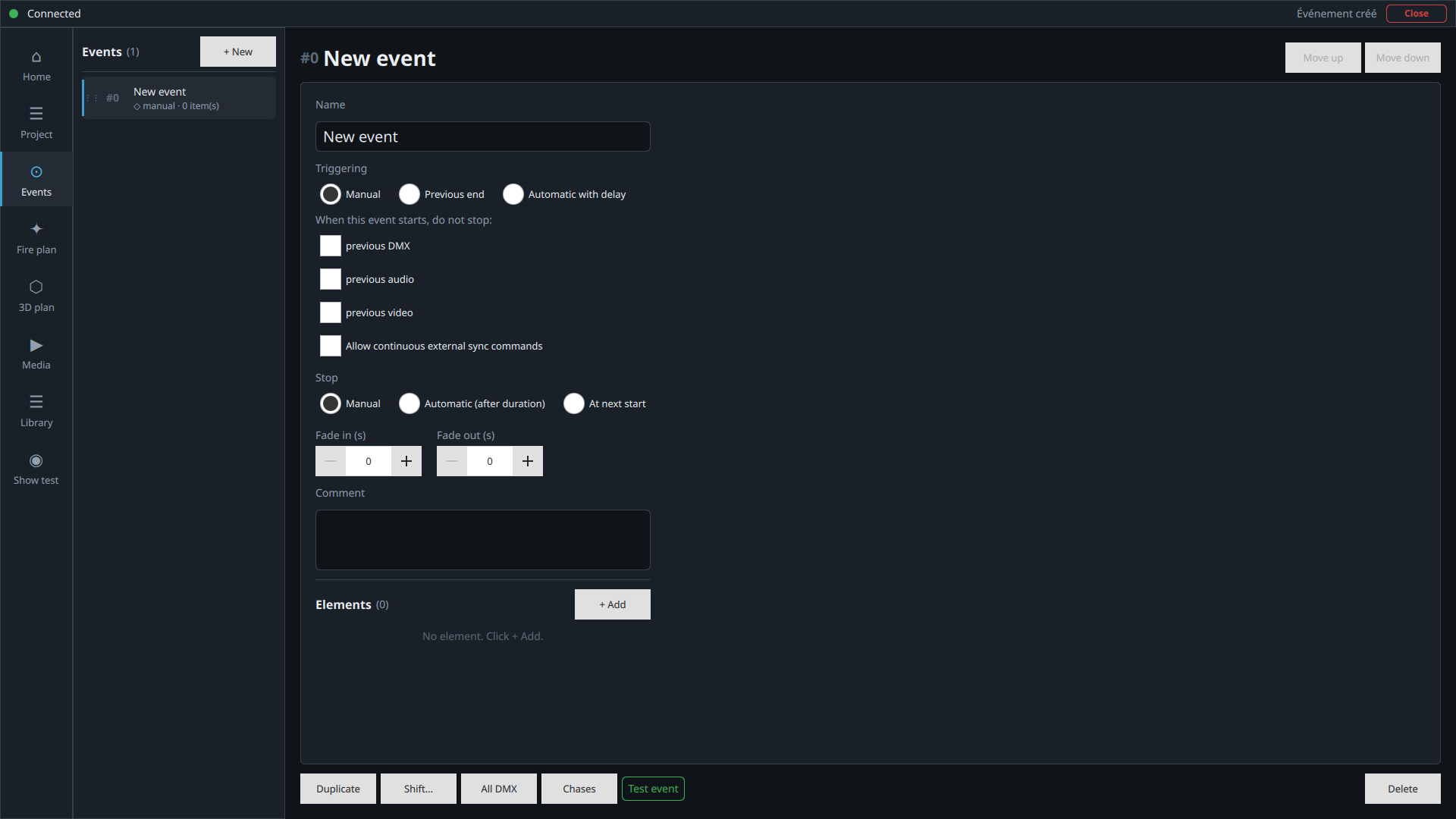
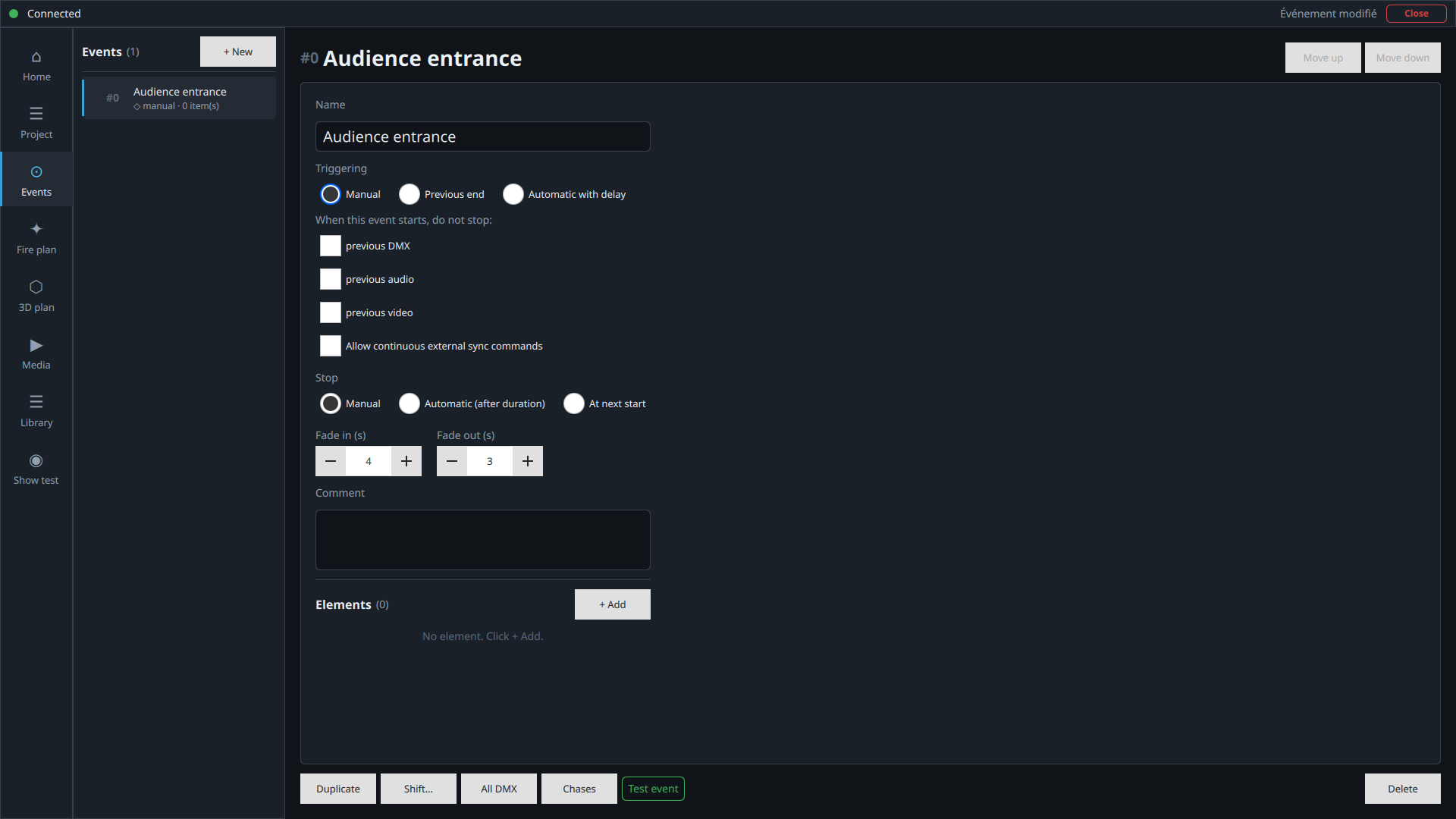
The Editor's main section, split into two parts. The left panel lists events in trigger order (drag and drop to reorder, + New to create a new one). The right panel edits the selected event.
Triggering
| Mode | Description |
|---|---|
| Manual | The operator triggers it (space bar or button) |
| Previous end | As soon as the previous event ends |
| Automatic with delay | At a precise moment |
| Start of show | X seconds after the show starts (§3) |
| Start of previous + Xs | X seconds after the previous event starts |
| End of previous + Xs | X seconds after the previous event ends |
Stop
| Mode | Description |
|---|---|
| Manual | The operator stops it manually |
| Automatic (after duration) | Stops after a fixed duration (in seconds) |
| At next start | Stops when the next event starts |
Transitions — Fade in (ramps up on start) and Fade out (ramps down on stop). Under "When this event starts, do not stop:" you can keep the previous DMX, audio, or video running, and a separate "Allow continuous external sync commands" option enables continuous control from an external source (OSC, MIDI, motion capture) for this event.
At the bottom of the page: Duplicate, Shift… (shifts automatic events measured from the start of the show), All DMX (grouped control), Chases (DMX step sequences), Test event, Delete.
Elements of an event
An event contains one or more elements:
- DMX element — a fixture from the catalog, DMX address calculated (and editable), channel-by-channel values via sliders, with Channels and Effects panels per element.
- Audio element — a file and playback volume; played on the server when triggered.
- Video element — a file played on the screen connected to the server; only one active video element per event.
Use + DMX, + Audio, or + Video (in the "Add an element" window) to add elements; each element's stop can inherit the event's, or be set to manual or auto; each element can be removed individually.
DMX chases
A chase is an automatic DMX sequence that runs while the selected event is active. It is used to make several fixtures evolve over time: a running light, alternating colors, a move from one position to another, a sweep across several fixture groups, and similar step-based lighting patterns. The chase starts with the event and stops with it; it is not launched separately.
How it works
A chase is made of steps. Each step applies a preset to one or more DMX fixtures for a given duration, with an optional fade. If looping is enabled, the last step goes back to the first one and the sequence continues as long as the event remains active.
- Preset — the DMX state to apply: color, dimmer, position, gobo, or any combination of already saved channel values.
- Duration — how long the step remains active, in milliseconds.
- Fade — progressive transition from the previous step, in milliseconds. At 0, the change is immediate.
- Targets — the event's DMX fixtures affected by this step.
Prepare presets
Before creating a chase, prepare at least one DMX preset. In the event, click All DMX, set the channels for a fixture or a group, then use the preset save button to name that state, for example Red, Blue, Warm front, Blackout, or Stage-left position. These presets then become available in the Chases panel.
Create a chase
- In the event, add the DMX fixtures that should take part in the chase.
- Click Chases.
- In the left column, enter the new chase name, then click +.
- Select the chase in the list.
- Click + Add step.
- For each step, choose the preset, duration, fade, then click the fixtures targeted by that step.
- Enable Loop if the sequence should repeat.
- Click Save steps.
- Run Test event to check the result before show control.
Examples
| Goal | Typical setup |
|---|---|
| Simple chase across 4 PAR fixtures | 4 steps of 300 to 600 ms, same light preset, a different target on each step, loop enabled. |
| Red / blue alternation | Step 1 Red preset on all fixtures, step 2 Blue preset on all fixtures, 800 ms duration, 200 ms fade. |
| Left / right sweep | Different position presets applied successively to moving heads or scanners, with a longer fade. |
| Fast music effect | Short steps, low or zero fade, loop enabled. Adjust step duration to the desired tempo. |
Chases or Effects?
The Effects button on a DMX element acts channel by channel on a single fixture: a soft wave or a blink on one channel. The Chases button acts at event level: it plays presets one after another on one or more fixtures. In practice, use Effects to vary one channel continuously, and Chases to organize a sequence across several fixtures or several states.
Good to know
- A chase belongs to the current event: it is not automatically applied to other events.
- If a step has no target fixture, it will not produce any visible change.
- If a preset does not contain a channel used by a targeted fixture, that channel is not modified by the step.
- Several chases can exist in the same event. If they control the same channels, values are merged by the engine; avoid unnecessary overlaps to keep the result predictable.
Fire plan & 3D plan
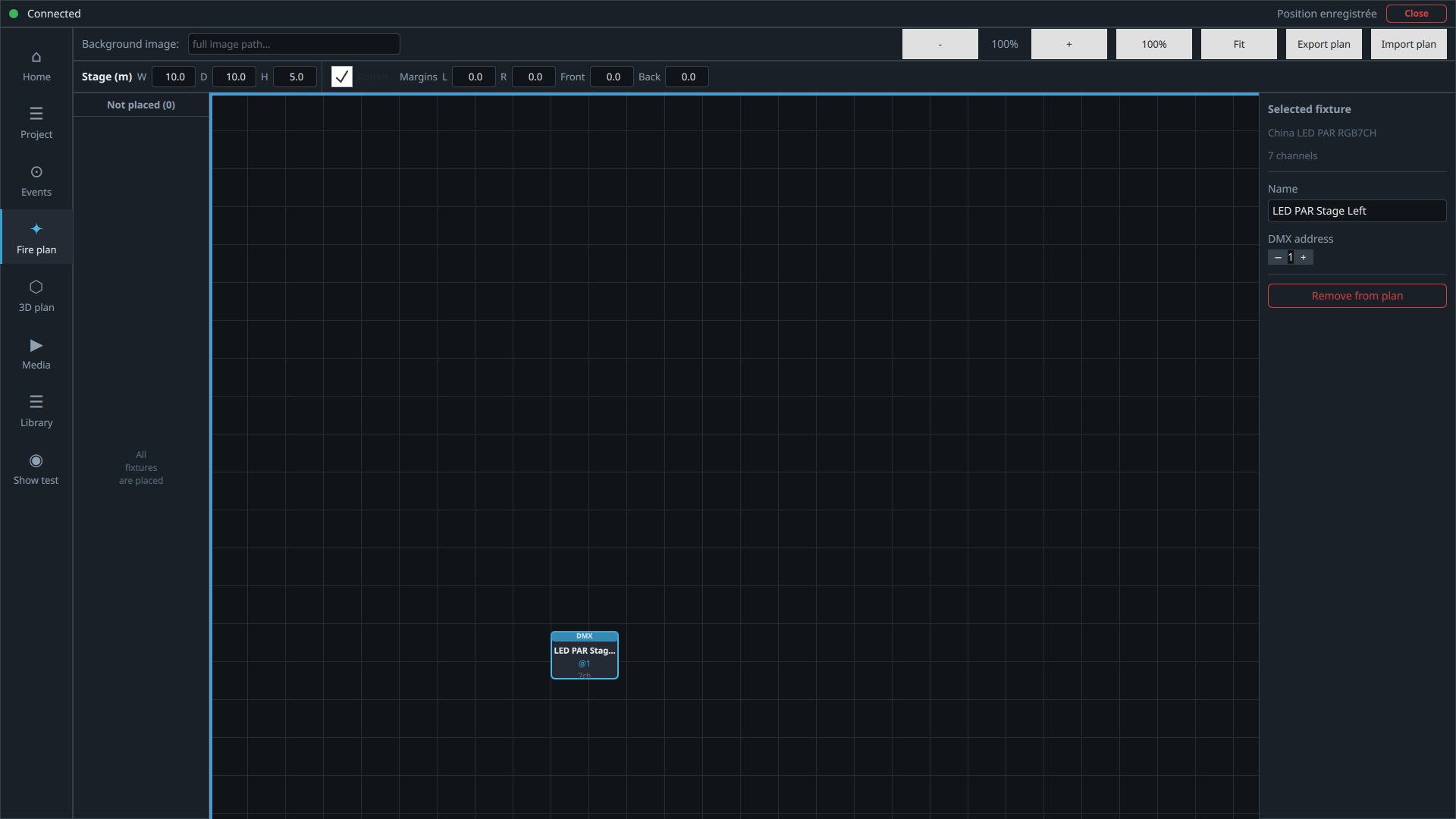
The Fire plan shows the stage in two dimensions with fixtures placed on it, to check their placement and DMX addressing. Its Stage (m) bar sets the stage width (W), depth (D) and height (H), the edge and the off-stage margins (L, R, front, back): these dimensions are shared with the 3D plan, so a change in either view applies to the other.
From the Fire plan, the +DMX button opens the same DMX fixture dialog used from events, based on models already created in the library. The new fixture then appears in the unplaced-fixtures list and can be positioned on the plot.
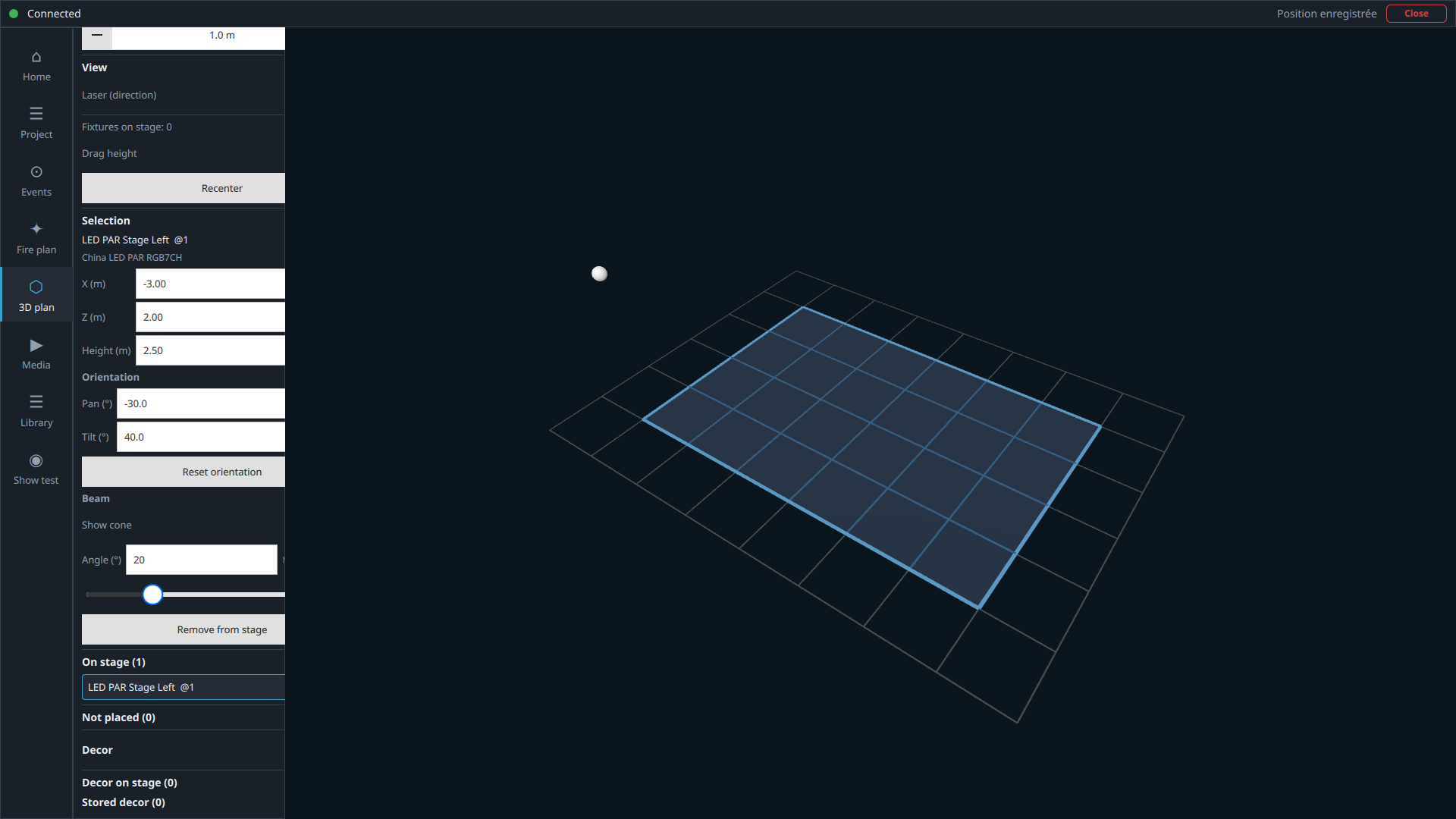
The 3D plan (optional) shows the stage in three dimensions: stage dimensions (width, depth, height, margins outside the stage), a grid with an adjustable step, placement of fixtures not yet positioned, X/Z/height/pan/tilt adjustment, beam or cone display (manual angle or one taken from the GDTF profile), and simple set pieces. This view also serves as visual feedback during the Show test (§2.8): DMX values are simulated there, without being sent to the real hardware.
The same +DMX button is available in the 3D plan to create a fixture directly from that view, then place it in the 3D space.
Moving, aiming, or deleting a fixture
- In the 3D plan, select a fixture, then use left-click + drag to move it on the floor, following the mouse movement.
- Use right-click + drag to adjust its height.
- Use Ctrl + left-click + drag or Ctrl + right-click + drag to adjust its pan/tilt aim. The Pan and Tilt fields can also be edited manually in the selection panel.
- Remove from plan / Remove from stage only removes the fixture from the placement view: it remains in the show and can be placed again from the unplaced-fixtures list.
- Delete from show permanently deletes the fixture from the project and removes it from every event that uses it. A confirmation dialog is shown before the action is applied.
Media, Library, and Show test
The Media page manages the project's files across four sections (Photos, Documents, Audio, Video) — + Photo and + Document to add them, remove on hover. A screen selector picks which video output is used for playback.
The Library page reuses, directly from the Editor, the list of models and their channels to quickly adjust the fixtures used in the project — full GDTF profiles and hardware stay managed in the dedicated Library application (§4).
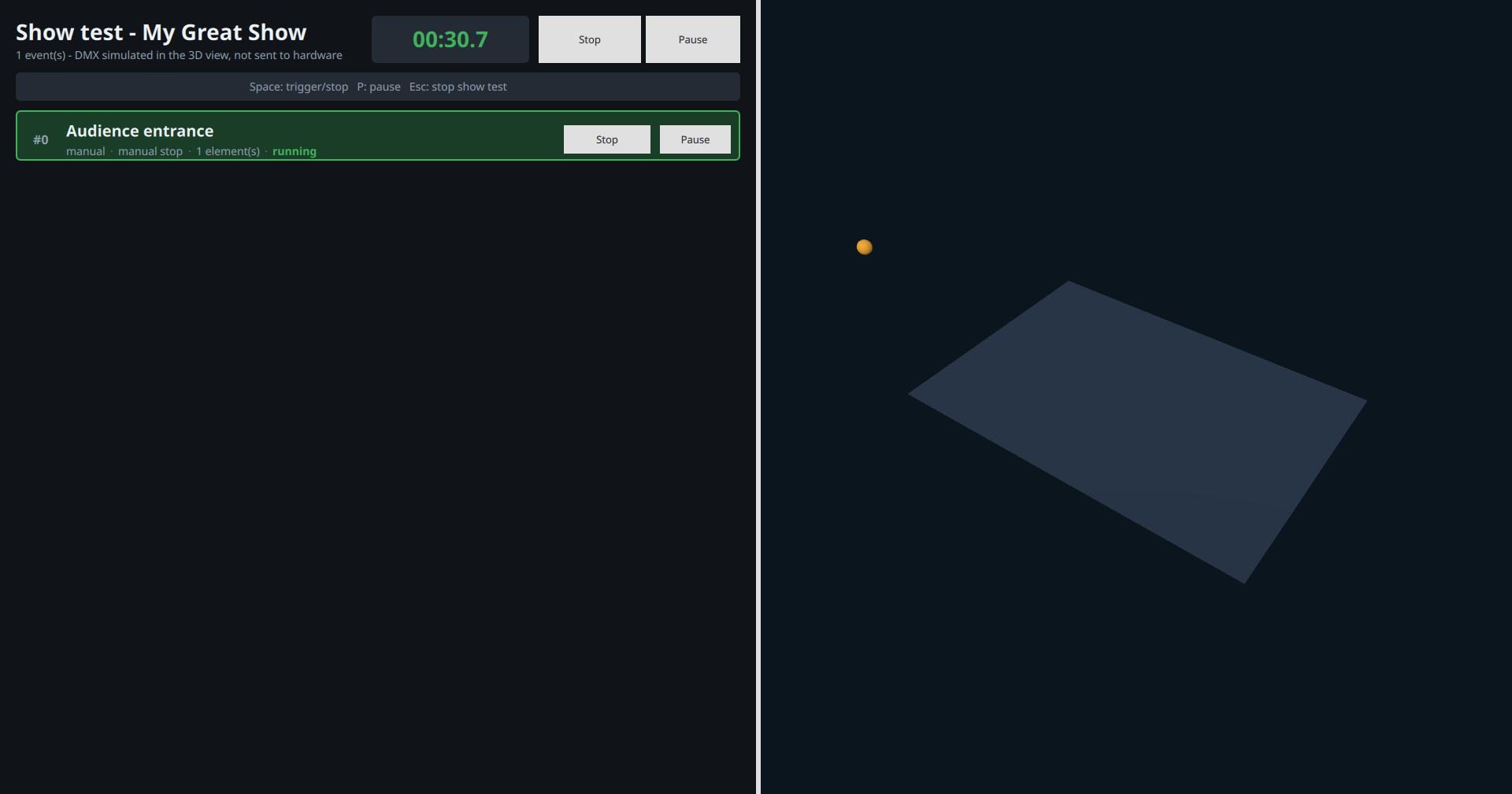
The Show test opens a separate window that mirrors the real show control's behavior (triggers, stops, pauses, chaining, audio/video playback), except that DMX isn't sent to the hardware: it's simulated in the 3D plan. The Space, P, and Esc shortcuts work the same as in Show Control.
Show Control
Show Control is the application used during the performance: it shows the event list and lets you run it in real time.
Project selection & the control screen
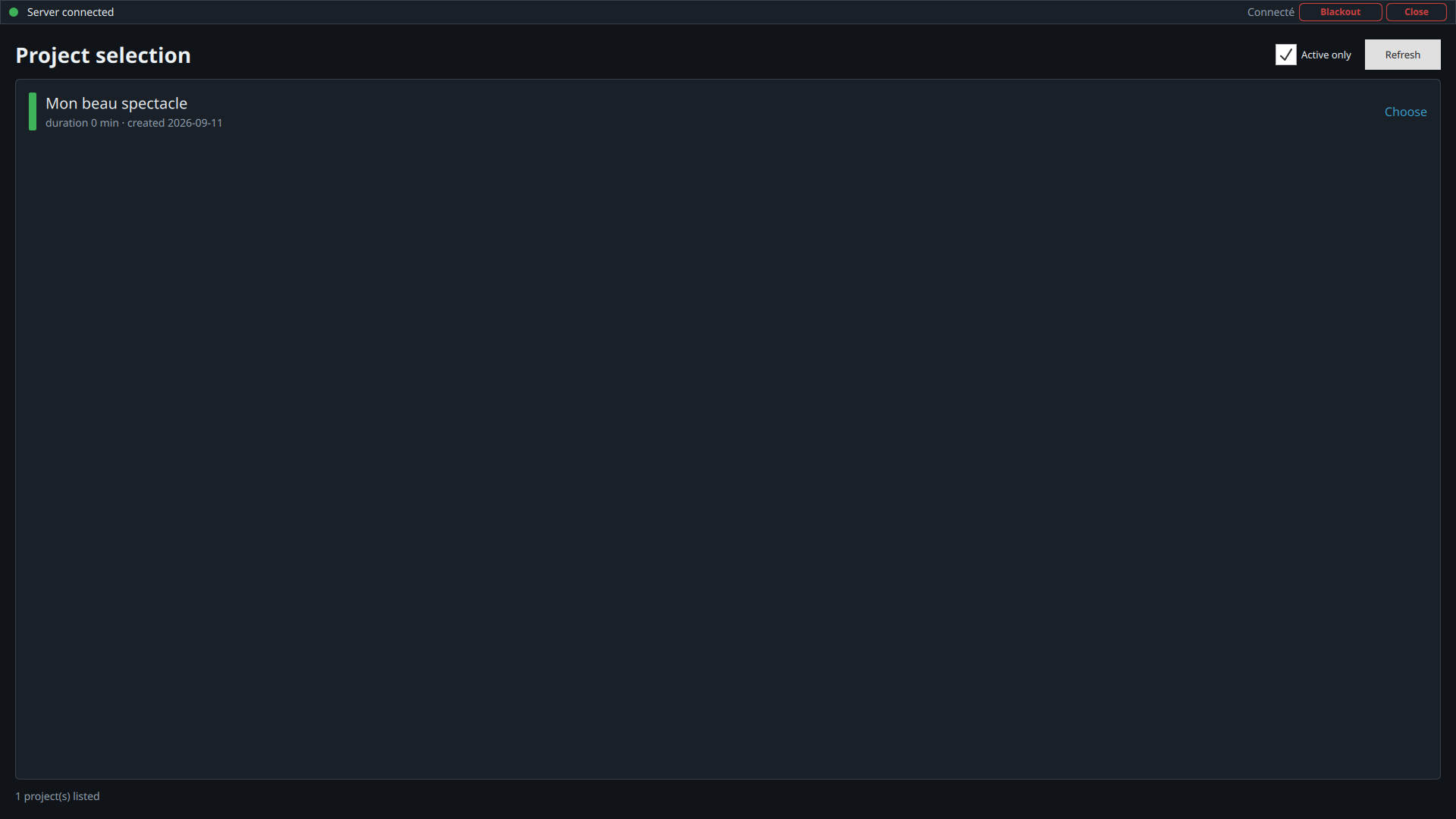
On startup, a selection screen lists the active projects — click Choose to load one. The control screen then splits into two zones: the left panel (controls and event list, always visible) and the right panel (emergency fire plan, visible only in Emergency mode).
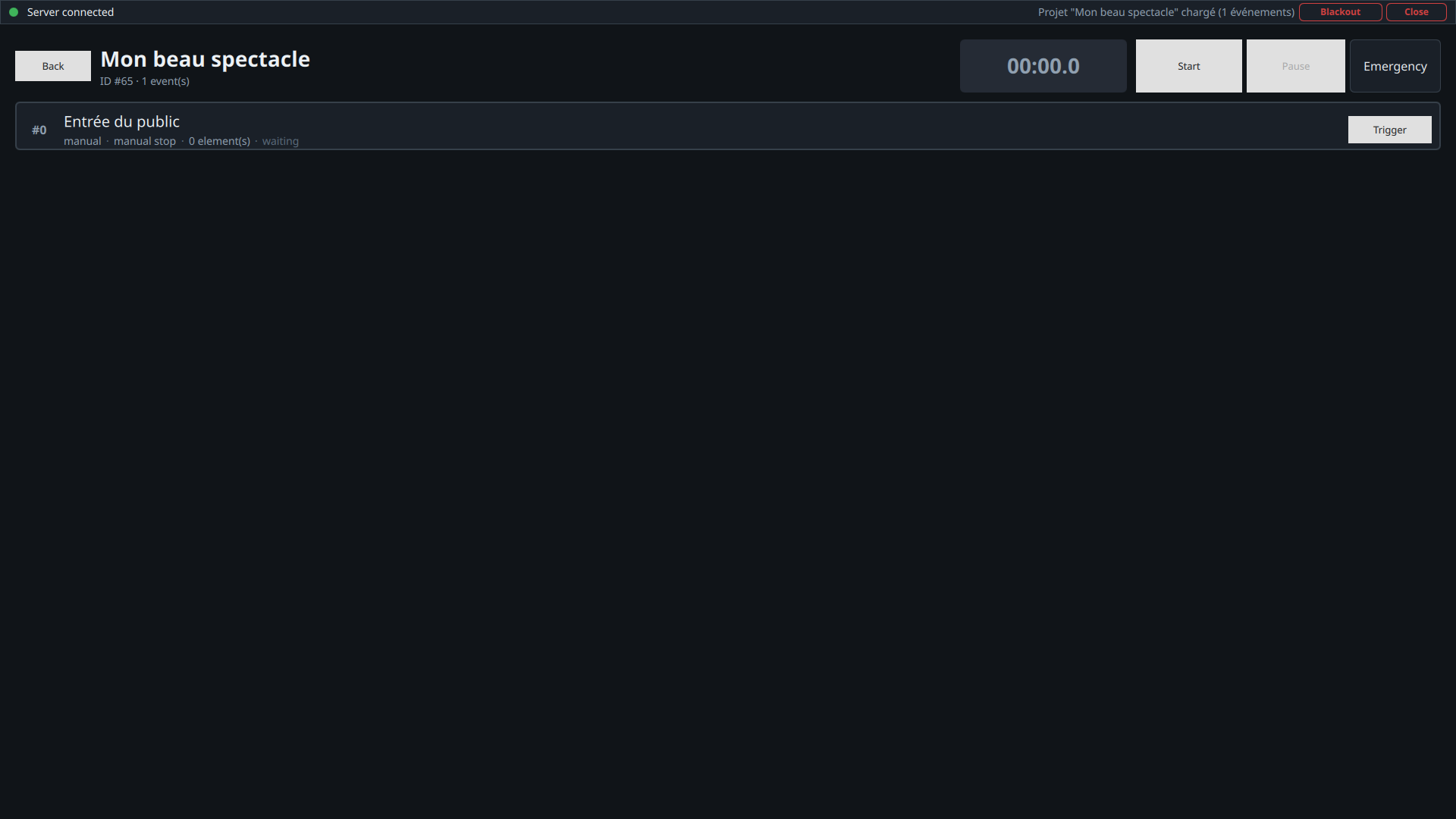
The top bar groups together:
- Back — to project selection (only while playback is stopped).
- Project name and ID, with the number of events.
- Timer — elapsed time (green while running, amber while paused).
- Start / Stop — the whole show.
- Pause / Resume — every event currently running.
- Emergency — switches to Emergency mode (see below).
- Blackout — cuts every DMX output immediately.
A secondary toolbar appears while the show is running: jump +10 s / +30 s / +1 min / -10 s, the Grandmaster control (overall dimmer intensity, without touching colors or positions), and a reminder of the keyboard shortcuts.
Event list
Each event is a tile with a color code:
| Border | State |
|---|---|
| Amber | Next event to trigger (highlighted) |
| Green | Running (running or starting) |
| Blue | Finished |
| None | Waiting |
Each tile shows its position number, name, trigger and stop mode, number of elements, current state, and any warnings.
- Trigger / Stop — visible for waiting manual events and for running events with a non-automatic stop; greyed out at 50% for an "at next start" stop; absent for an automatic stop.
- Pause / Resume — pauses or resumes that event alone, independently of the global pause.
- ↺ Restart alone — re-triggers a finished event on its own.
Keyboard shortcuts
Active regardless of keyboard focus, even after clicking a button:
| Key | Action |
|---|---|
| Space | Stops the first running event with a manual stop, otherwise triggers the next waiting manual event |
| P | Global pause / resume for the show |
| Esc | Full stop of the show |
| B | Global DMX blackout |
Emergency mode & media panel
The Emergency button (red) splits the screen in two: event list on the left (in compact mode), fire plan on the right with the live state of every DMX fixture — to keep an overview of the stage while still controlling events.
The media panel, visible to the right of the list while the show is running (outside Emergency mode), shows the media currently playing with its volume and position controls.
Library
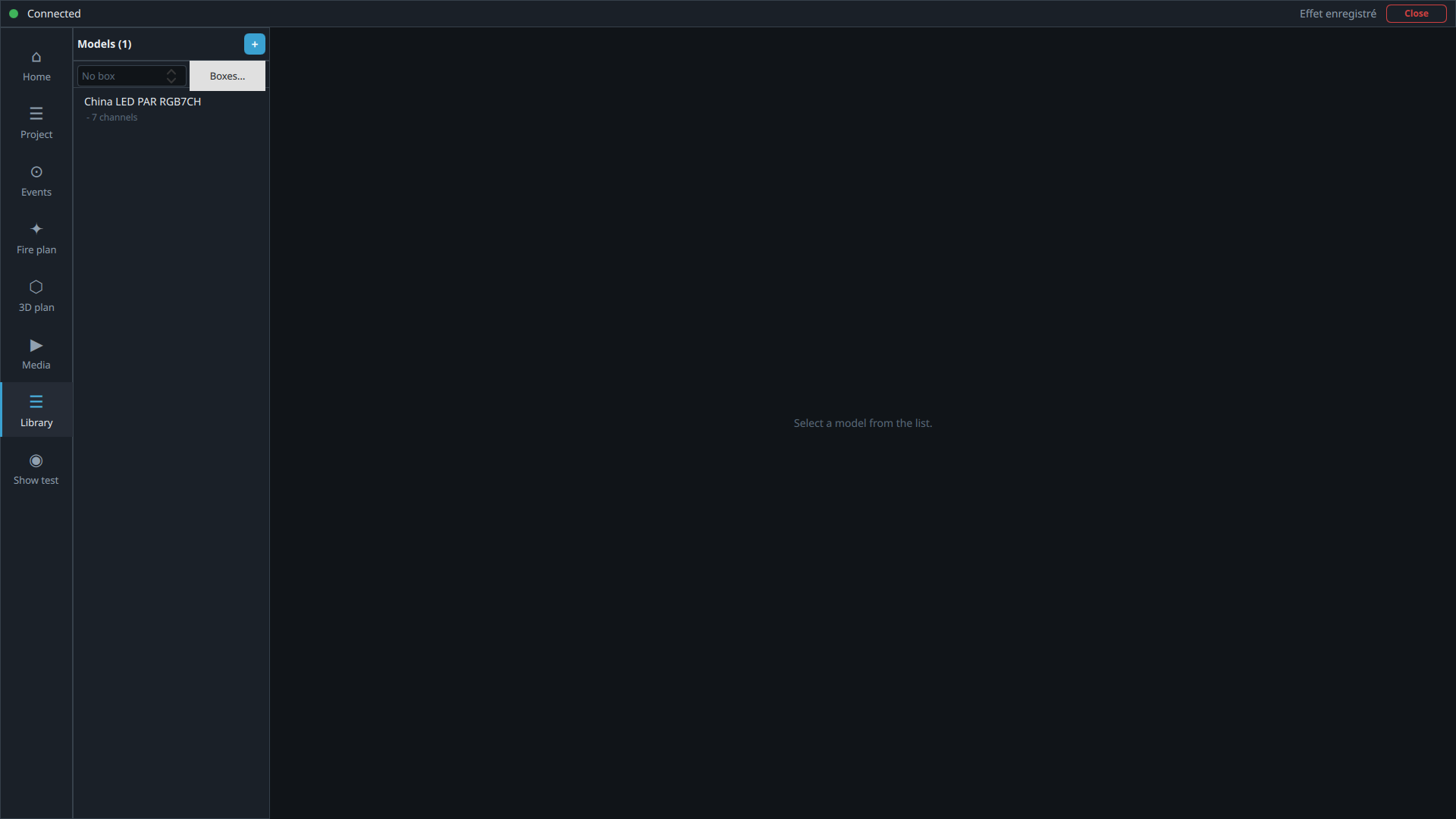
The Library manages DMX fixture models, GDTF profiles, and the hardware interface configuration, through three sections in the left rail: Models, Profiles, and Hardware.
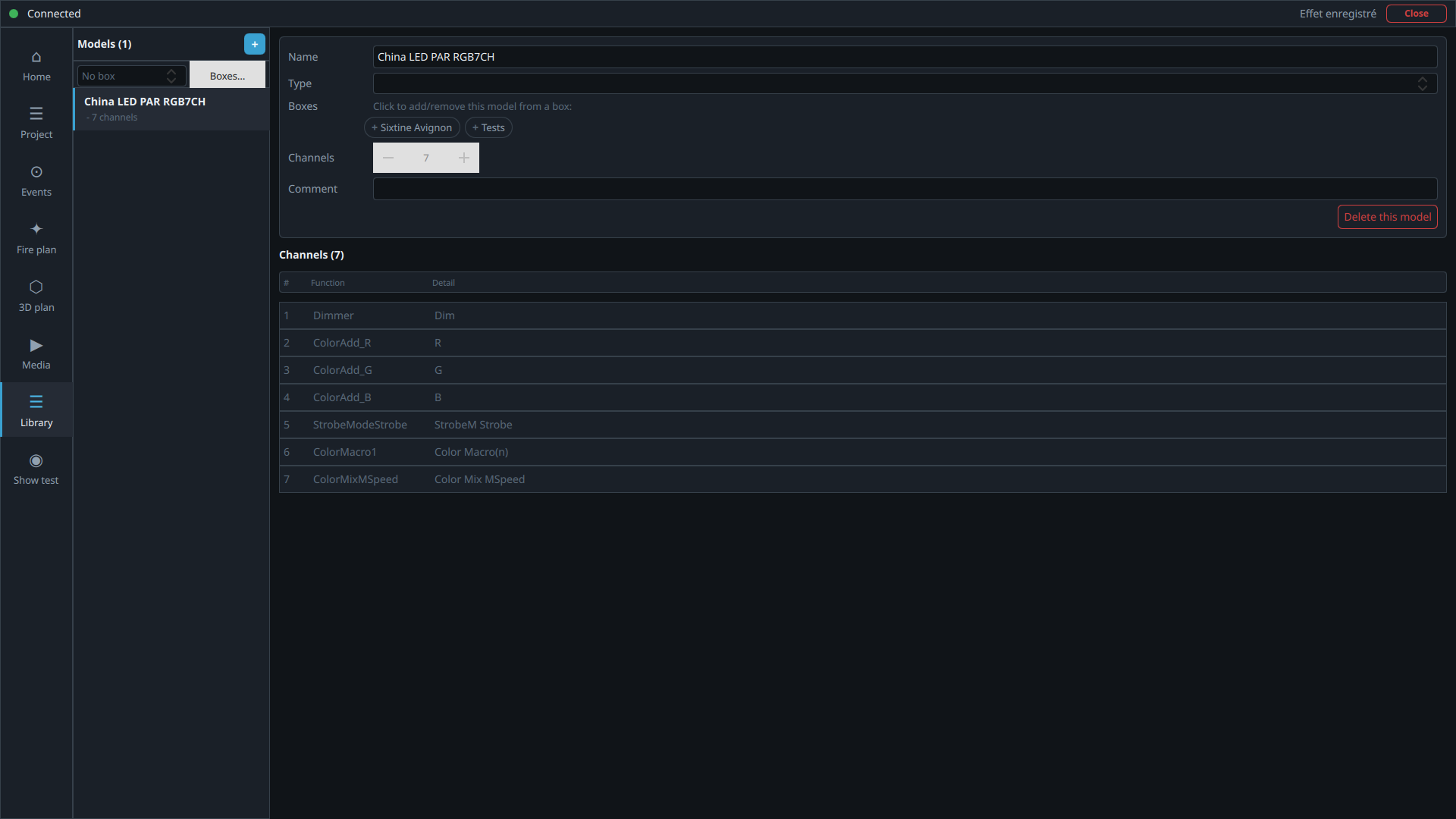
Models
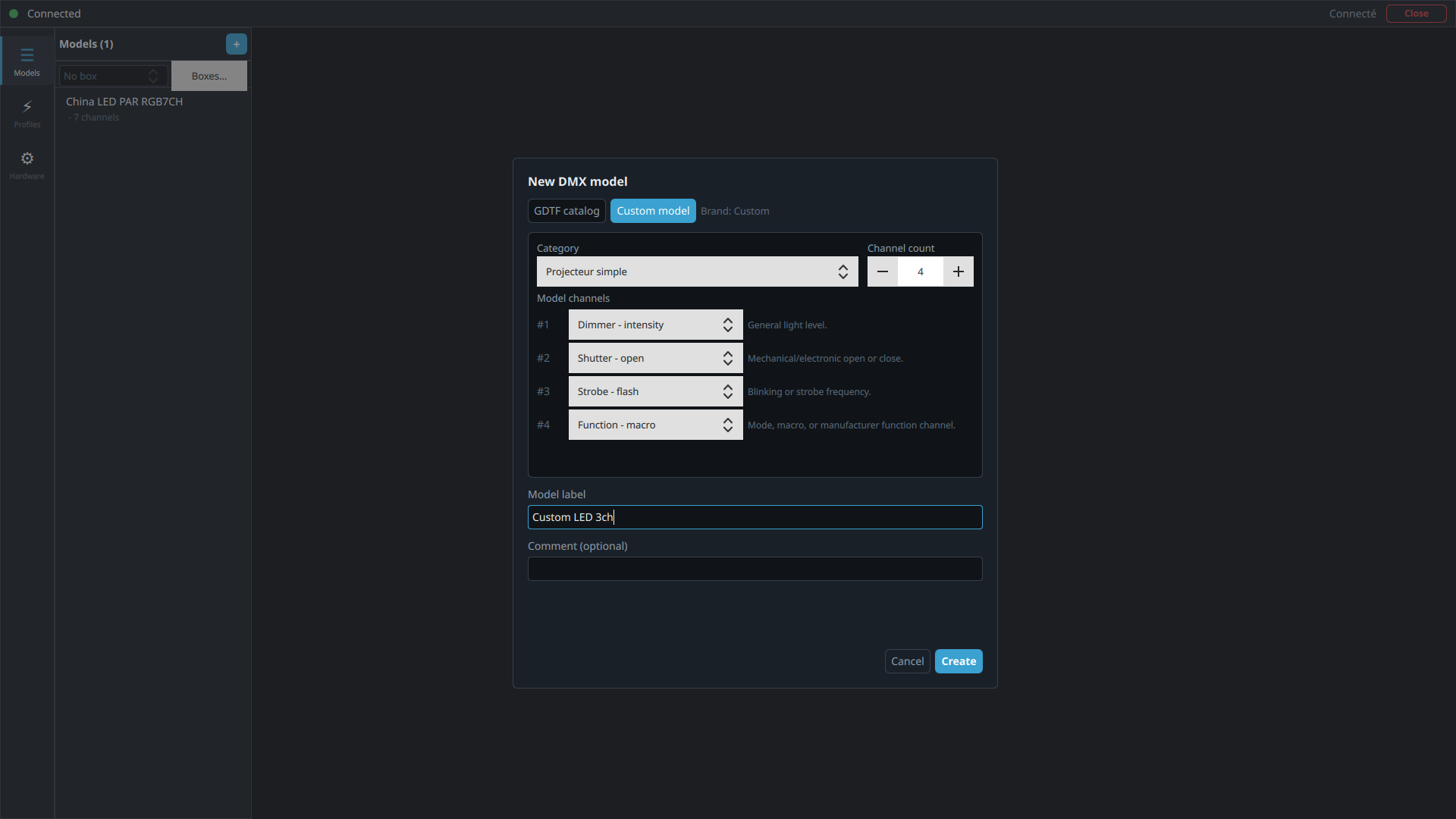
A model corresponds to a DMX profile/mode usable in projects. The list (left panel) shows name, type, and number of channels. The "+" button opens the New DMX model window, with two possible sources:
- GDTF catalog — select an existing profile from the GDTF database (category, brand, number of channels).
- Custom model — build a custom model, saved under the brand Custom: choose a category and a number of channels, then assign each channel a function from a list of standard GDTF functions (Dimmer, Shutter, Strobe, macro, color, position…).
The right panel then offers four tabs:
- Details — Name, Type, Channels, Comment, and deleting the model (confirmation required).
- Channels — a table of DMX channels (number, function, detail), editable directly in the cells.
- Photos — thumbnails, add from disk, click to enlarge / slideshow.
- Documents — associated product sheets or manuals (PDF, DOC, TXT, ODT).
Profiles
Gives access to the available GDTF profiles: filtering by category, brand, and
number of channels; viewing DMX modes, breaks, channels, wheels, and the imported
beam angle; importing a .gdtf file from disk, with a choice of which
modes to import if it contains several. GDTF profiles are read-only — to fix a
profile, import a corrected GDTF file.
The Import GDTF button installs or updates the dmx++ GDTF catalog: the server downloads the latest version published on dmxplus.fr (over 9,000 fixture profiles from the market) and applies it to your database. Your models and projects are left untouched. Without an internet connection, the catalog shipped with the installation is applied instead and the status bar shows "Local catalog used" with the reason.
Hardware (DMX interface)
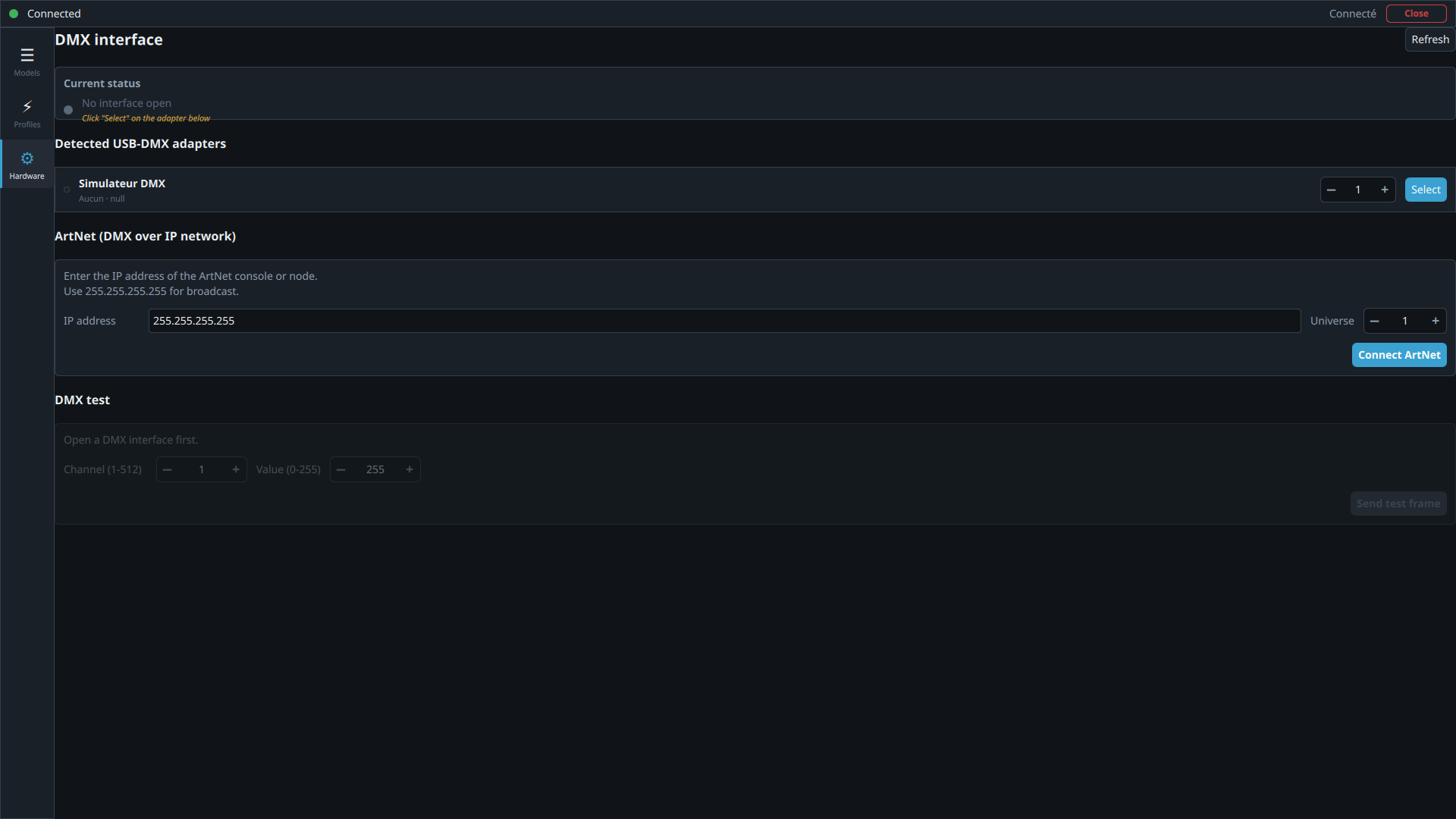
Manages the connection between the server and the physical DMX hardware.
- Current status — whether an interface is open (green = active), its name and universe; a button disconnects the current interface.
- Detected USB-DMX adapters — name and chipset, universe selector (1 to 8), Select to activate it, ↺ Restart for the active interface. Refresh at the top of the page if nothing shows up after plugging one in.
- ArtNet (DMX over IP network) — IP address
(
255.255.255.255for broadcast), universe (1 to 256), Connect ArtNet. - DMX test (requires an active interface) — Channel (1–512), Value (0–255), Send test frame.
- RDM — if the interface supports it, scans the DMX line then lets you change the address and personality of detected fixtures.
Licensing and restricted modes
| State | Behavior |
|---|---|
| Valid | All features available according to the option chosen, plus updates. The license has no time limit for the version it's tied to; installing a new version is a purchase at a preferential rate. |
| Trial | All features available during the trial period |
| Trial expired | Access blocked (Editor, Show Control, Library, and server) — no more Emergency mode; only activating a license unlocks it |
Activation happens from the Launcher — the window appears automatically, or on
the next startup if the license is missing or has expired. The key
(DMXP-XXXX-XXXX-XXXX-XXXX) is emailed to you at purchase and can
only be activated on the designated show computer.
Add-ons purchased later (Tablet app, 3D plan, Online backup) are added to your license on our servers: the Launcher detects it and offers "Update my license" (§1) — no new key to enter.
Backup and restore
Local database backup
In Editor > Home, Export (local) saves a SQL file containing all of your data (projects, events, library) — keep it somewhere safe, ideally on another medium than the show computer. Restore (local) reloads a previously exported SQL file.
Online database backup (add-on)
With the Online backup add-on (€1 excl. VAT / month, linked to the license), the Server backup frame appears in Editor > Home:
- Export (server) — uploads the complete database to the dmx++ servers. A comment is mandatory: write it so it still makes sense months later (e.g. "Before tour — final version of the show").
- Restore (server) — lists the available backups (name, date, comment); after selecting one and confirming, the local database is fully replaced by it.
This is your recovery path after a crash, theft or a computer change: install dmx++ on the new machine, activate your license, then restore from the server. Up to 10 backups are kept per license.
Fire plans
A project's fire plan is exported and reloaded from the Project page (§2), either locally (JSON file) or on the server (free with a valid license, up to 30 plans).
Troubleshooting common issues
The server is unavailable (red indicator)
The dmx++ server must be running on the show computer. Check that the service is active — nothing works without a connection to the server.
Keyboard shortcuts (Space, P, Esc) don't respond
These shortcuts are only active in Show Control, and only while the show is running (the Start button pressed).
The space bar doesn't move to the next event
It follows the order of the events: if the running event has a manual stop, it stops that one first before triggering the next. With an "at next start" stop, it triggers the next one directly.
An event stays "running" when it should be finished
Event state is refreshed from the server every 250 ms — a slight lag is normal. If the state stays stuck, check the connection to the server.
"Import GDTF" shows "Local catalog used"
The catalog couldn't be downloaded from dmxplus.fr (no internet connection, server unreachable): the catalog shipped with the installation was applied instead. Run the import again once you're back online to get the latest version.
"Cloud database backup option not included"
Your license doesn't include the Online backup add-on. If you've just subscribed, click "Update my license" in the Launcher, then restart the Editor.
"Explicit name and mandatory comment" when exporting a fire plan
Uploading a fire plan to the server requires a unique name and a comment (exact name and address of the venue). The message "Cloud: duplicate_name" means one of your plans already uses that name: pick another one.
No USB-DMX adapter detected
Plug in the adapter and click Refresh in Library > Hardware. If the device still doesn't show up, check the drivers and the user's access rights to USB devices.